

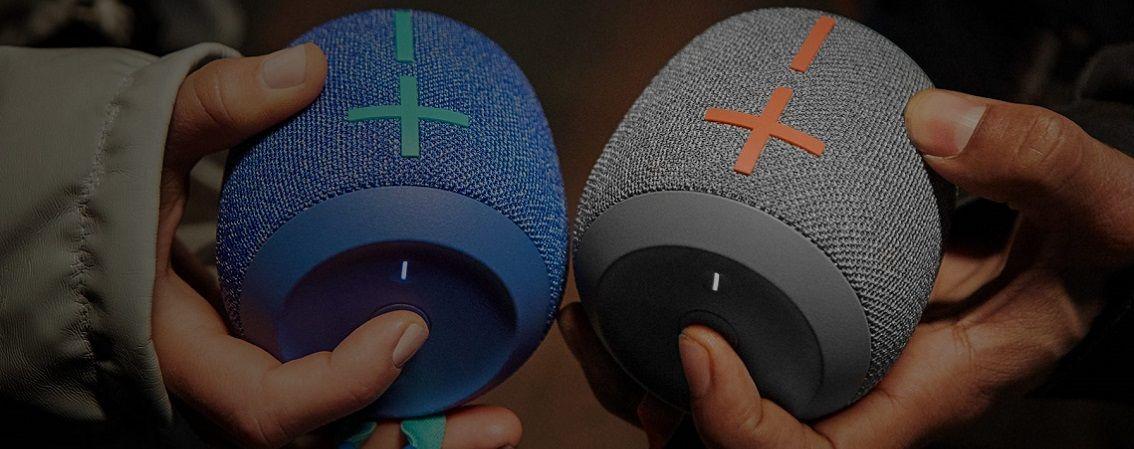
If you're hoping to fill your home with rich, room‑to‑room sound, you’re in the right place. Once upon a time, this would have included armfuls of trailing cables. But connecting multiple Bluetooth speakers is frankly a lot less daunting.
Whether you’re setting up your first Bluetooth speaker or linking a few together for a bigger audio boost, we’ll walk you through it in a simple way. No jargon. No holes in the wall to feed cables!
Connecting Bluetooth speakers in your home
There are lots of ways to get your Bluetooth speakers working together, whether you’re using a specific brand’s app, your smartphone’s built‑in tools or a smart assistant like Alexa. Below, we’ll break it all down so you can choose what best suits your setup.

How to connect to a Bluetooth speaker - the basics
Let’s start from the very beginning – pairing your new Bluetooth speaker to your phone:
Step 1: Put your speaker in Pairing Mode
Make sure your Bluetooth speaker is turned on (kind of crucial) and ‘discoverable’. Most speakers will be discoverable as soon as they’re on, but there might be a button to press. Often, there will be a little blinking light, so you know your speaker is discoverable.
Step 2: Open Bluetooth settings on your device
Search for Bluetooth on your phone, TV or laptop. It will typically be under Settings. Make sure Bluetooth pairing is switched on – this should be obvious as a little on/off toggle.
Step 3: Select the speaker from your Available Devices list
From there, you can see all the Bluetooth devices around you – simply select your speaker, and you should be good to go.
This is the same for all Bluetooth devices, whether you want to connect to your headphones, car audio, or multi-room speakers.

Linking speakers with Auracast
Auracast is a new Bluetooth feature that lets one transmitter device broadcast audio to multiple nearby compatible speaker receivers. Perfect if you want your whole home humming with the same track!
You’ll find Auracast on many modern smartphones, plus speakers from companies like JBL.


How to connect to two (or more) Bluetooth speakers
Okay, perfect – you’re up and running. Now let’s connect multiple Bluetooth speakers to one device. After all, the joy of wireless speakers is the ability to have music in every room (or all around you if you want).
Speaker brands are fully aware that you’ll want to connect multiple devices for bigger sound, so there are tons of apps to let you do just that. Here are some of our faves:
Connecting multiple Bose speakers
The Bose Connect app lets you link two Bose speakers in either Party Mode (same audio everywhere) or Stereo Mode (left/right channels).
Open the Bose Connect app.
Choose your main Bose speaker.
Select Party or Stereo Mode and add your second speaker.
Connecting multiple JBL speakers
If your JBL speakers use JBL Connect+ or PartyBoost, you can link them for a bigger, fuller sound.
Turn on all JBL speakers and pair your main one to your device.
Press the JBL Connect+ or PartyBoost button on each speaker.
The speakers will link automatically once activated.
Connecting multiple Sonos speakers
Sonos speakers make multi‑room listening super easy using the Sonos app.
Open the Sonos app.
Add each speaker to your system.
Group speakers or rooms in the app to play audio everywhere you want.
For more, here’s our guide to connecting Sonos speakers in different ways.
Using your smartphone to connect multiple Bluetooth speakers from different brands
Some phones make it possible to link multiple Bluetooth speakers, even from different brands.
Android (Samsung ‘Listen Together’):
Go to Settings → Bluetooth and pair both speakers.
Look for the ‘Listen Together’ pop‑up.
If it doesn’t appear, swipe down → tap Media/Media Output and select your speakers.
Apple (HomePod only):
Open the Home app.
Choose your HomePod → Settings → Create Stereo Pair.
Select the second HomePod.
How to connect Alexa to a Bluetooth speaker
Currently playing your playlists through your Smart assistant? You can connect your Bluetooth speaker to your Amazon Echo, Dot or Show for twice the sound.
Make sure your speaker is discoverable for pairing
Open the Alexa app and select Devices – Echo & Alexa
Choose your speaker
Select Bluetooth Devices, then Pair a new device
Create the ultimate sound experience
Once you’ve got the hang of pairing and linking speakers, you can shape your home audio however you like. From massive sounds in one room to a different soundtrack in every corner of your space. For more inspiration, check out our Audio buying guide.
FAQs
Can you connect multiple Bluetooth speakers to one device?
Yes, you can connect multiple Bluetooth speakers to one device, depending on your device, operating system, and the speaker brand. Some phones support dual‑audio modes, while apps like Bose Connect, JBL PartyBoost, and emerging technologies like Auracast make it easier to link multiple speakers for synced playback across different rooms or spaces.
Why is my Bluetooth speaker not connecting?
Your Bluetooth speaker might not be connecting for a few reasons. Start by ensuring your speaker is in pairing mode, then toggle Bluetooth on your device off and back on. Restarting the speaker or phone can also help. If it still won’t connect, try removing the device from your Bluetooth list and pairing again.
How do I reset my Bluetooth speaker?
Most Bluetooth speakers can be reset by holding a specific combination of buttons — often the power button plus volume up or down. Each brand is different, so check your user manual or the manufacturer’s website for the correct steps to fully reset your model.
How close does my device need to be to a Bluetooth speaker to pair?
Bluetooth typically works best within about 10 metres, though this can vary by device. Walls, thick furniture, and other wireless signals can weaken the connection. For the most reliable pairing and playback, try to maintain a clear line of sight between your device and the speaker.