

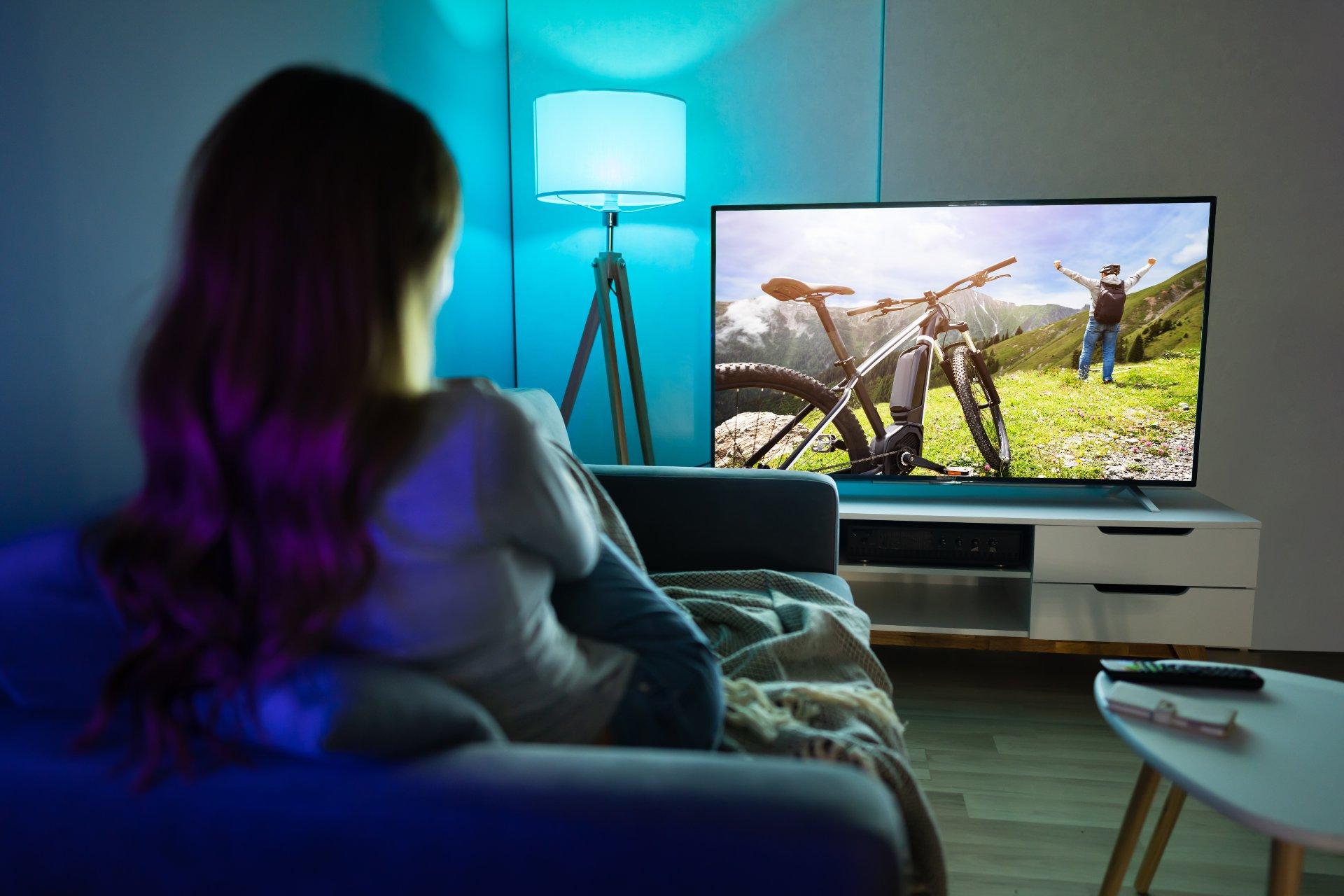
Getting started with a new laptop, iPad or tablet? Fancy playing your favourite games or viewing family photos and videos on a huge display? If you’re nodding your head, why not connect your little screen to your TV for a big screen experience?
There are a couple of ways you can do this - either wirelessly (by casting or mirroring) or with a cable linking the two.
What’s the difference between mirroring and casting?
Screen mirroring lets you ‘mirror’ what’s on your laptop or tablet to your TV screen without a wired connection. The TV will show exactly what’s happening on the phone. So if you’re playing a game, any pauses will happen in real-time on the TV screen too.
Screen casting lets you display content such as movies and home videos on your TV. Only the content is shared, so you can use your tablet or laptop to do other things without playback being interrupted.
It’s all pretty straightforward as long as you follow a few simple steps for your device. Below, we’ll show you the different ways of connecting a laptop, iPad or tablet to a TV.
How to connect a laptop to the TV
Connecting a laptop to a TV wirelessly
You can wirelessly connect your laptop to a smart TV using Wi-Fi Direct – just as long as they both support this feature.
To set it up, grab your TV remote control and select ‘screen mirroring’ as your source.
Then go into settings on your laptop, head to ‘connected devices’ and select ‘add device’. Select your TV, and you’ll see your laptop display on your telly.
Connecting a laptop to a TV with a cable
You can also connect your laptop to the TV with an HDMI cable. This is a great option if you don’t have a smart TV. Simply plug your cable into your laptop and one of your TV’s HDMI ports. Then go into your TV settings, select the HDMI input you’ve chosen, and enjoy the view on your TV.

Some newer laptops are so thin, they haven’t got HDMI ports. These usually come with USB Type-C instead. But don’t worry, there are plenty of HDMI to USB-C cables and adapters out there at a decent price.
How to connect an iPad to a TV
Connecting an iPad to a TV wirelessly
The easiest way to connect your iPad and TV wirelessly is with Apple's AirPlay feature. This is built-in to your iPad already, and lets you mirror or cast content to any AirPlay compatible TV.
To use AirPlay, your iPad and TV need to be connected to the same home Wi-Fi network. Then open ‘Control Center’ on your iPad, tap ‘AirPlay Mirroring’ and select your TV. It’ll then show whatever’s on your iPad screen.
Connecting an iPad to a TV with a cable
You can connect your iPad to your TV with a cable if you have a Lightning Digital AV Adapter. Plug this into your iPad, then you just need to connect an HDMI cable from the adapter to your TV’s HDMI port.
How to connect a tablet to a TV
Connecting a tablet to a TV wirelessly
You can connect your laptop to your TV wirelessly by streaming. It’s easiest to do this with a smart TV that has Chromecast built-in, but don’t worry if yours doesn’t. A Google Chromecast device is all you need. Simply plug it into your TV’s HDMI port and a USB power port, and make sure the Chrome browser is installed on your laptop.
When everything is connected, select the “cast” button in Chrome on your laptop and follow the onscreen steps. You’ll be casting your laptop to your TV screen in a couple of minutes.

Connecting a tablet to a TV with a cable
The quickest, easiest, and most direct way to connect your tablet to your TV is by using a Micro HDMI to HDMI cable. Simply connect it to your laptop and one of your TV’s HDMI input sockets. Then go into your TV settings, select the HDMI input you’ve chosen, and you’ll see your tablet display on the telly.
Wired vs. wireless: which connection method is best?
When it comes to hooking up your laptop, iPad or tablet to the telly, you’ve got two main options – wired or wireless. Each comes with its own pros and cons…
Wired connections (like HDMI cables) are super reliable. You plug one end into your device and the other into your TV. That’s it. The picture and sound are usually crystal clear and there’s no lag. But you’ll need the right cable, and your device has to stay close to the TV.
Wireless connections (AirPlay, Chromecast, or screen mirroring etc) are great if you want to move around or hate messy cables. They’re easy to set up, especially if your devices are already on the same Wi-Fi network. Just keep in mind that the quality can drop if your internet is slow or spotty.
So, which is best? If you want the best picture and sound, go wired. If you want convenience and fewer cables, wireless is your best bet.
Best cables and adapters to connect devices to your TV
Not all devices have the same ports. So, the right cable or adapter will completely depend on what you’re using. Here’s a quick guide:
HDMI cable – The gold standard. Works with most laptops and some tablets. Just plug in and play.
USB-C to HDMI adapter – Great for newer laptops and tablets that only have USB-C ports.
Lightning to HDMI adapter – For iPads and iPhones. Apple’s ‘Lightning Digital AV Adapter’ is a solid choice.
Mini DisplayPort to HDMI – If your MacBook is on the older side, you’ll need one of these.
Micro HDMI to HDMI – Some tablets tend to have this smaller kind of port.
Before you buy, check what ports your device has. And make sure the cable or adapter supports both video and audio. Then you’ve got all bases covered!

Common issues and how to fix them when connecting devices
You’ll know this by now, but tech can go wrong. Here’s a few common connection problems and how to fix them fast…
No signal on the TV? – Double check that the TV is set to the right input (e.g. HDMI 1 or HMDI 2). Also, make sure the cable is plugged in all the way. A slightly loose connection can throw a spanner in the works.
Picture but no sound? – On your laptop or tablet, go to the sound settings and choose your TV or HDMI as the audio output. Otherwise, you’ll be stuck with just the subtitles.
Screen mirroring not working? – Both devices need to be connected to the same Wi-Fi network. Restarting both the TV and your device can also help. Switching them off and on is the oldest trick in the book. But hey, it works.
Lag or choppy video? – If you’re using a wireless connection, try moving closer to the router or switch to a wired connection. You’ll have much smoother and way more solid playback.
Any questions?
Need more help choosing your next tablet, laptop, TV or any other piece of tech? If you’d like to talk to an expert, pop in-store or have a video chat using ShopLive.