


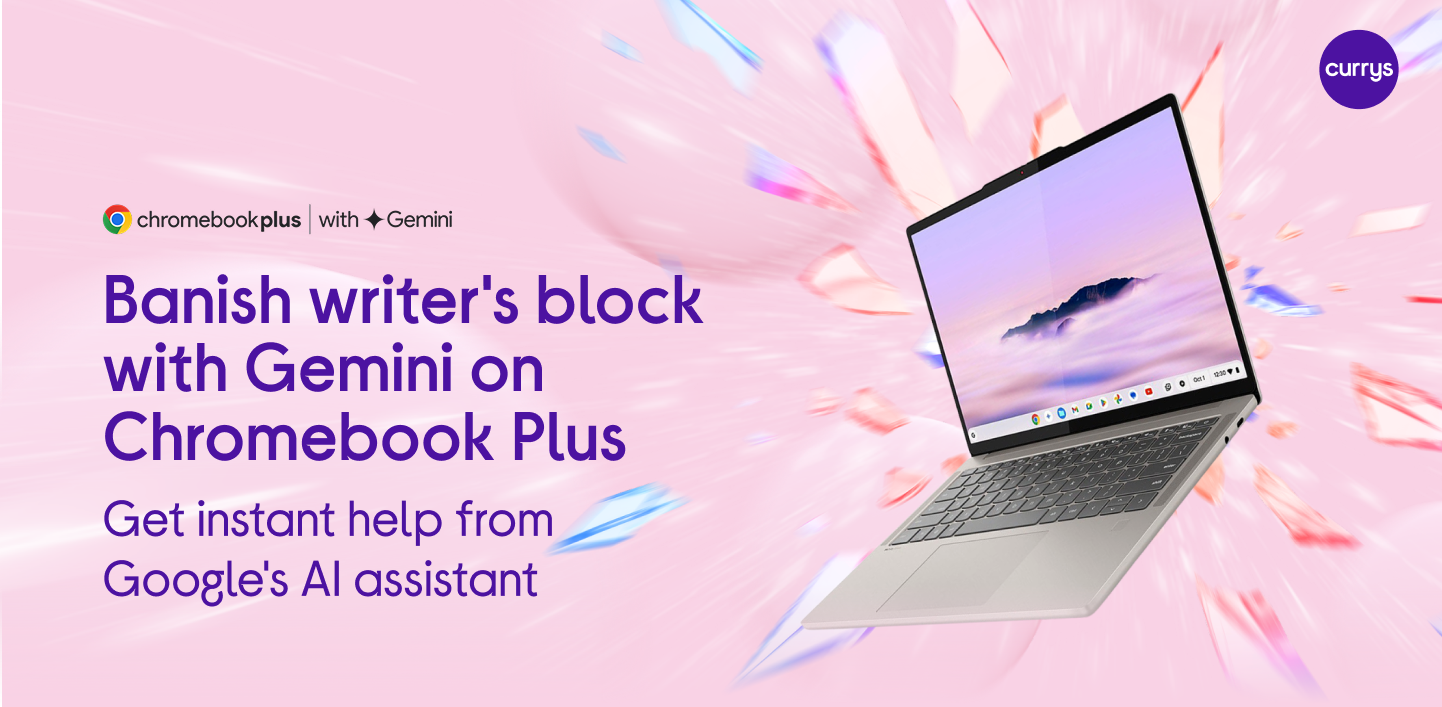
How Google Gemini helps you get the
ideas flowing again
When you're starting off writing, there's nothing worse than a blinking cursor on a blank page. We've all been there. But a new generation of laptops with exciting AI features is looking to change all that. And one of the best things about AI on Chromebook is how it can give your creative brain a jumpstart!
Everybody has their own unique voice, so AI doesn't need to be about writing for you. It's there to write with you. Google Gemini on Chromebook becomes a real partner - from brainstorming buddy to personal editor. And it works great on the Lenovo Chromebook Plus 14.
So, whether you're kicking off your next novel or next email, here's how AI on Chromebook can help to banish the block for good.
What is a Chromebook Plus?
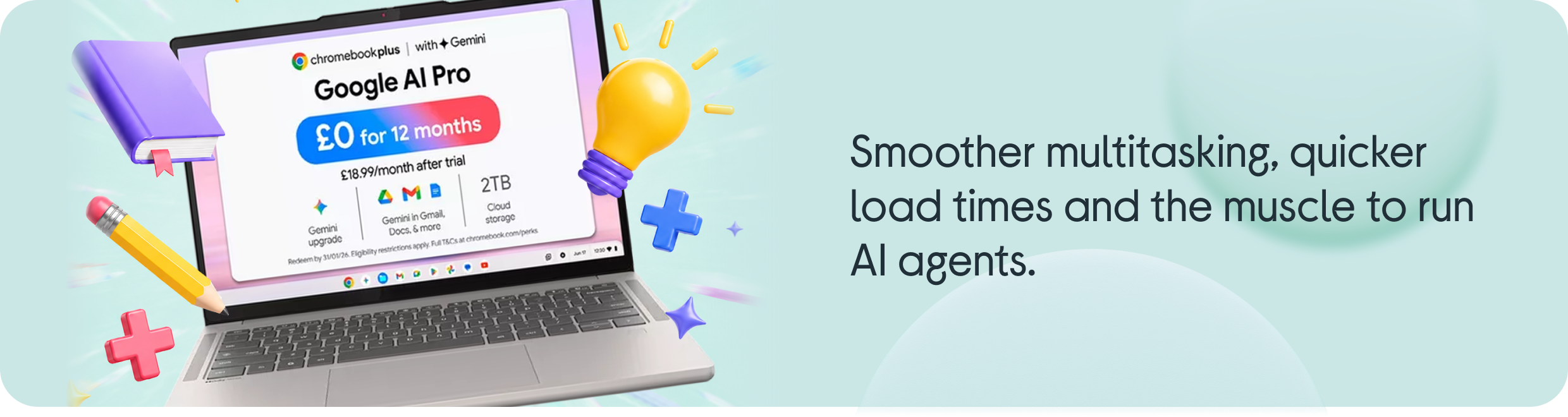
Traditional Chromebooks are known for their fast start ups, built in virus protection, and how easy they are to use. That's why Chromebooks can be great for students.
Chromebook Plus laptops have all those Chromebook features, plus souped up specs - including more memory and powerful processors. That means smoother multitasking, quicker load times and the muscle to run AI agents. The Lenovo Chromebook Plus 14 is a great laptop for Gemini AI, thanks to its MediaTek Kompanio Ultra 910 Processor and 16 GB of RAM. And at just over 1kg, it's a portable powerhouse too.
Tools like 'Help me write' and 'Help me read' are more than just handy. Use them a few times and you'll wonder how you did without them. Here's what makes them great…
Level up every word with 'Help me write'
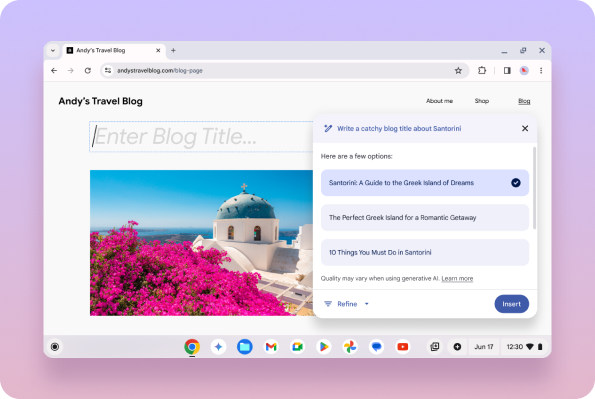
When it comes to AI for writing, 'Help me write' is where Chromebook Plus really shines. It's like a built-in writing partner.
When you're out of inspiration, 'Help me write' can help you get to a first draft in minutes. And if you're wrestling with rewriting, it can reword, change the tone, expand or tighten what you've got on the page. 'Help me write' can even translate text into multiple languages. (Check support.google for a list of supported languages.)
Quicker comprehension with 'Help me read'
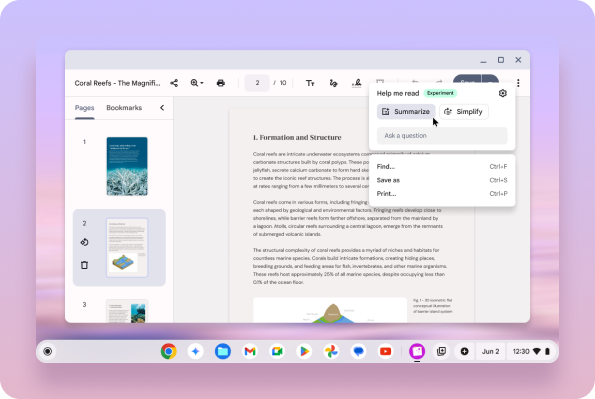
Almost all writing starts with reading - whether you're doing research for a blog, answering an essay question or just replying to an email. Powered by Gemini, 'Help me read' helps you cut through long, complex content - translating from a number of languages too
Open a dense PDF or link to an endless webpage and 'Help me read' can quickly summarise the key points, break down tricky sections or highlight what matters most. It helps make research, learning and staying informed much less overwhelming.
Become an expert with NotebookLM
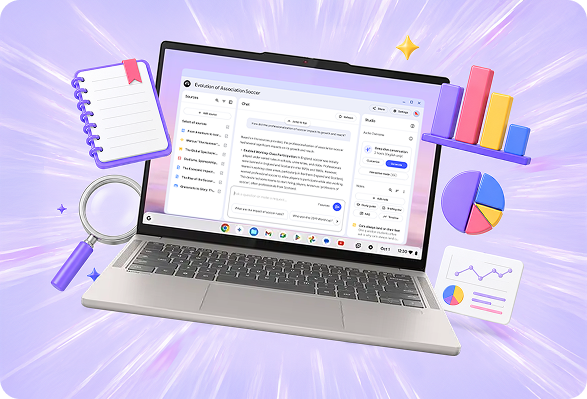
A powerful research tool.
To add to 'Help Me Read', you'll get instant access to NotebookLM on Chromebook Plus - a powerful research tool. You'll find it on 'the shelf' (Chromebook's taskbar) and it can analyse everything from PDFs and websites to YouTube videos. Once analysed, NotebookLM answers questions on the material, pulls out key points, creates study guides and can even help make podcasts. It can convert handwritten notes into editable text too.
Stay focused with Chromebook Plus's Quick Insert Key
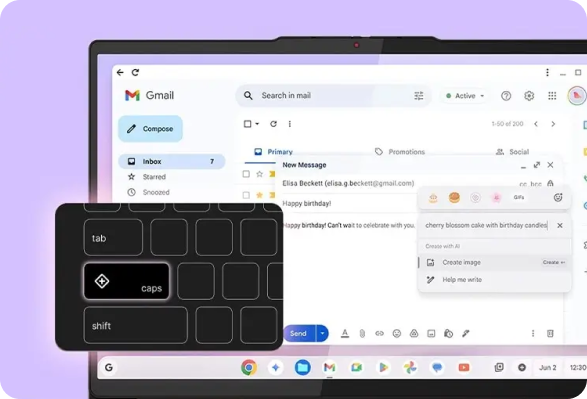
There's nothing like a new laptop, but the fight against distraction is real! You might be working on something and need more info. But a quick tab switch can turn into a full distraction spiral. Fortunately, the Lenovo Chromebook Plus 14 has a handy button to help.
The Quick Insert Key lets you generate images, add GIFs or get writing help while working on a document. That means fewer interruptions and quicker turnarounds when you're building slides, writing or pulling content together.
Built-in Magic Eraser and Magic Editor
Perfect for anything from presentation
images to holiday snaps.
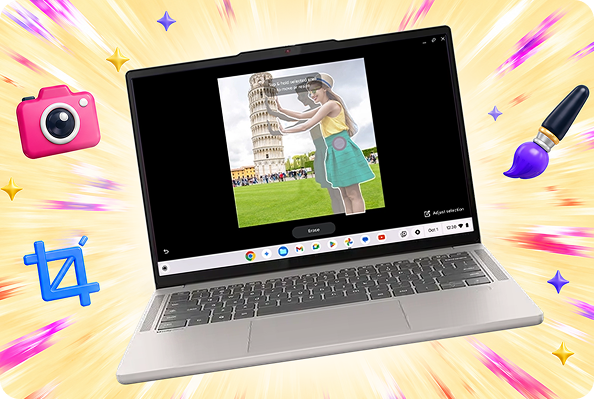
If you've used an Android phone before, you might already be familiar with Magic Eraser and Magic Editor. These tools let you clean up and improve photos without any extra software. You can remove background distractions, tweak elements or reshape an image in just a few clicks. No complex tools or editing skills needed. And they're really intuitive to use. Perfect for anything from presentation images to holiday snaps.
Gemini on tap
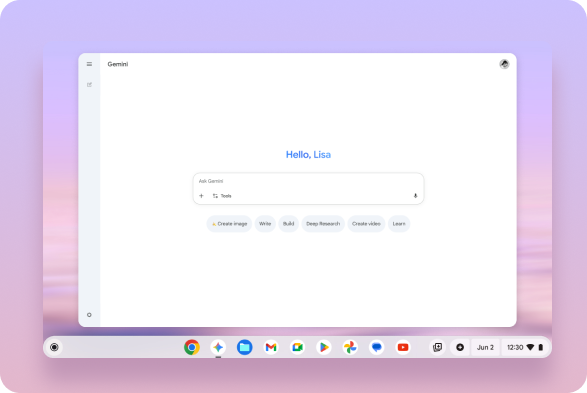
Google Gemini is accessible straight from Chromebook's home screen. So as soon as you open your Chromebook Plus, you can fire up Gemini for help with brainstorming ideas, shaping rough thoughts or working through a draft. So, when you have a good idea, you can strike while the iron's hot. And when your mind's gone blank, you can call on Gemini for help.
Ready to fire up your creativity?
With tools like Gemini, Help Me Write and NotebookLM within easy reach on Lenovo Chromebook Plus 14, you'll have everything you need to keep writer's block at bay. And whether you need that first flash of inspiration or an editor to help you refine that first draft, Google AI on Chromebook Plus can be a huge help every day.
FAQs
How to use AI for writing
You can use AI to generate ideas, refine structures or improve tone. Start with a prompt, then improve by providing feedback and asking for rewrites, expansions, or style changes. It works best as a collaborator — helping you draft faster, overcome blocks and create more polished final content.
How do I turn on 'Help me write' on Chromebook Plus?
On your Chromebook Plus, at the bottom right of the screen, click on the time. Then select Settings at the bottom right, next to the Battery status. From the left-hand menu, select 'System preferences'. Finally, under 'Search and suggestions', turn on Help me write.
Can I use Gemini on a Chromebook?
Yes, Gemini on Chromebook is easy to access and built into the experience. You can open it directly from the home screen or launcher, and get quick help with brainstorming ideas, drafting text or creating images without switching between apps or tabs.
What is NotebookLM and how do I use it?
NotebookLM is an AI tool that is powered by content you choose. Upload documents, PDFs or links, then ask questions, generate summaries or pull insights. It's useful for research, revision or turning complex material into clear, usable notes.