

QR codes are everywhere now. Whether you're shopping, dining out, or attending an event, you've likely encountered these pixelated squares that hold a treasure trove of information. If you're wondering how to scan a QR code on your iPhone or Android phone, you've come to the right place.
In this guide, we'll walk you through the process step by step. So, take a scan below…
How to scan a QR Code on an iPhone
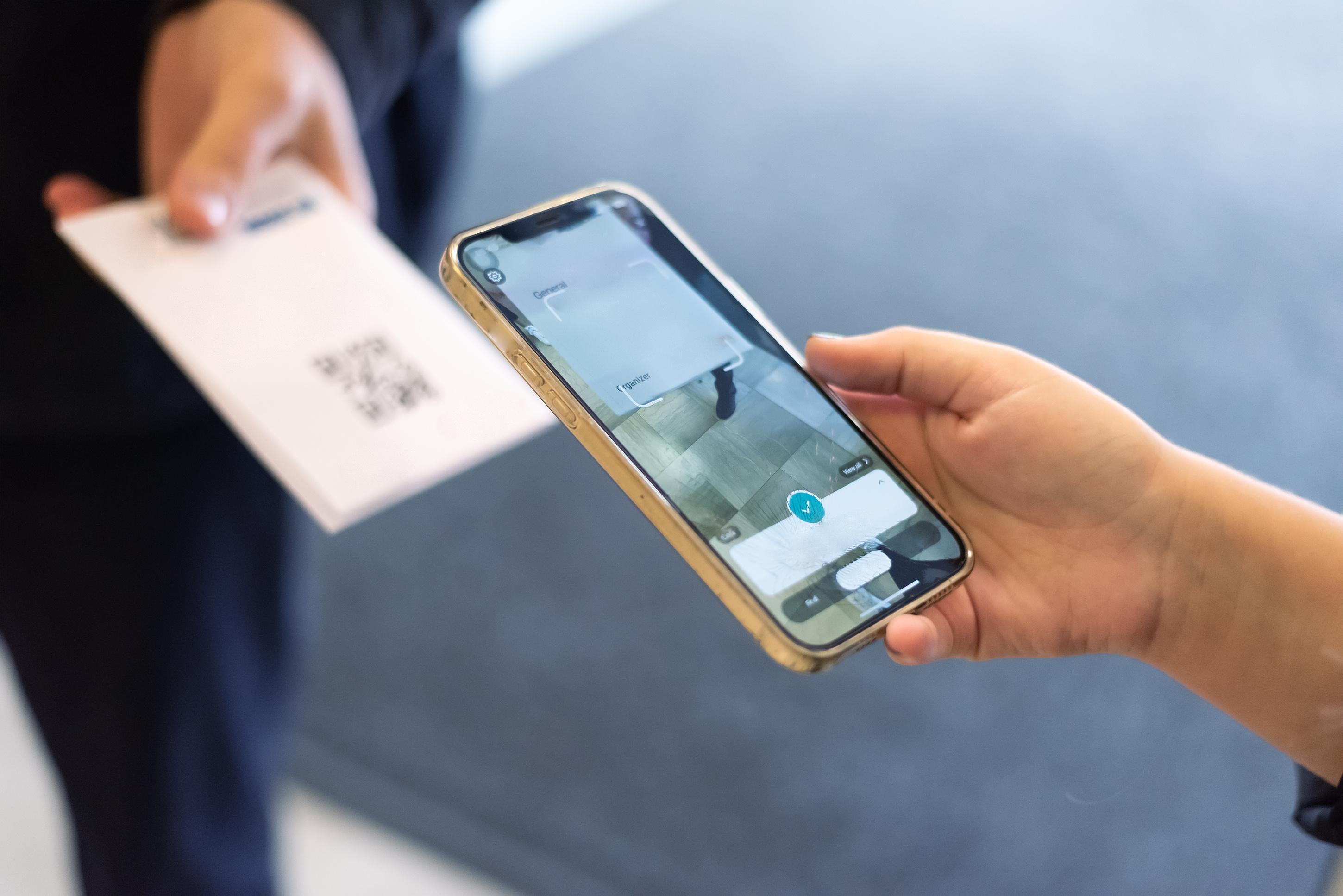
Scanning a QR code on an iPhone is a cinch, but you should make sure your device is running iOS 11 or later. Then, open the Camera app, point it at the QR code and let the magic happen.
Your iPhone will detect the code and display a notification at the top of the screen. Simply tap it, and you'll be directed to the link or content hidden within the code. No need to install any additional apps or other mobile phone accessories – your iPhone's built-in camera has you covered.
How to scan a QR Code on Android
If you're using an Android device, the process is equally straightforward. The key is to have the Google Lens app installed. Open your device's camera app, aim it at the QR code, and Google Lens will automatically recognise it.
A notification will appear with the decoded information or link, which you can tap to access. If your Android phone doesn't have Google Lens pre-installed, you can download it from the Google Play Store.
How do I scan a QR Code with my camera?
Both iPhones and Android devices can scan QR codes using their camera apps. This is possible because modern smartphones (even budget phones) come equipped with advanced camera technology. When you point your camera at a QR code, it automatically recognises the code and provides you with the option to open the link or view the content.
That means there’s no need for third-party apps, so you don’t have to clutter up your phone just so you can open a QR code.

Why Is my phone not scanning QR Codes?
If your phone is having trouble scanning QR codes, there could be a few reasons for it. The first thing to check is whether your camera lens is clean. Dirty or scratched lenses can block QR code recognition.
Also, check your camera app is up to date, as software updates often improve scanning capabilities. If you're still experiencing issues, try restarting your device or using a dedicated QR code scanning app.
FAQs
Can I scan a QR Code on my phone screen?
Yes, you can scan a QR code displayed on your phone's screen. Your camera app should be able to recognise QR codes on the screen, making it a convenient way to transfer information from one device to another.
How do I scan a QR code in My Gallery?
If you have a QR code saved in your photo gallery, you can scan it using your device's camera app. Simply open the camera app, select the image with the QR code from your gallery, and your smartphone will recognise the code and prompt you to open the link or view the content.
Can I scan a QR Code without an app?
While it's possible to scan QR codes without a dedicated app on some devices, it's recommended to have a QR code scanning app or feature, as it enhances compatibility and speed.
On iPhones, you can use the Camera app, and on Android, Google Lens is a reliable option.
Can Google Lens scan a QR Code?
Yes, Google Lens is a powerful tool that can scan QR codes, among other things. It's especially handy for Android users, as it comes pre-installed on many Android devices. If it's not available on your device, you can download it from the Google Play Store.
How to scan a QR Code with Bixby
For users of Samsung devices, Bixby, Samsung's virtual assistant, can also scan QR codes. Simply open Bixby Vision, point your camera at the QR code, and Bixby will recognise it. Simple.
Happy scanning!
For everything phones, check out our mobile category pages.