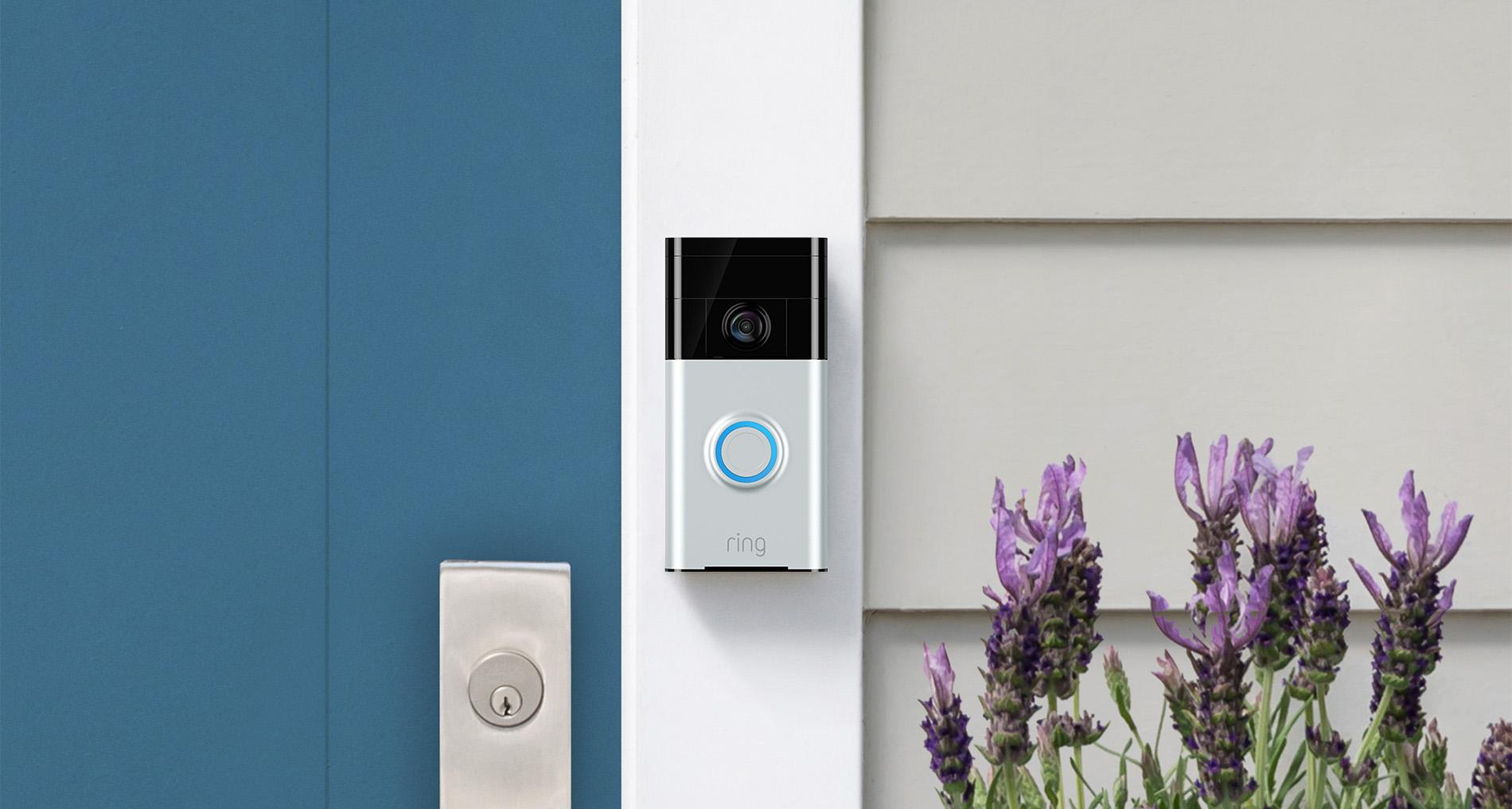


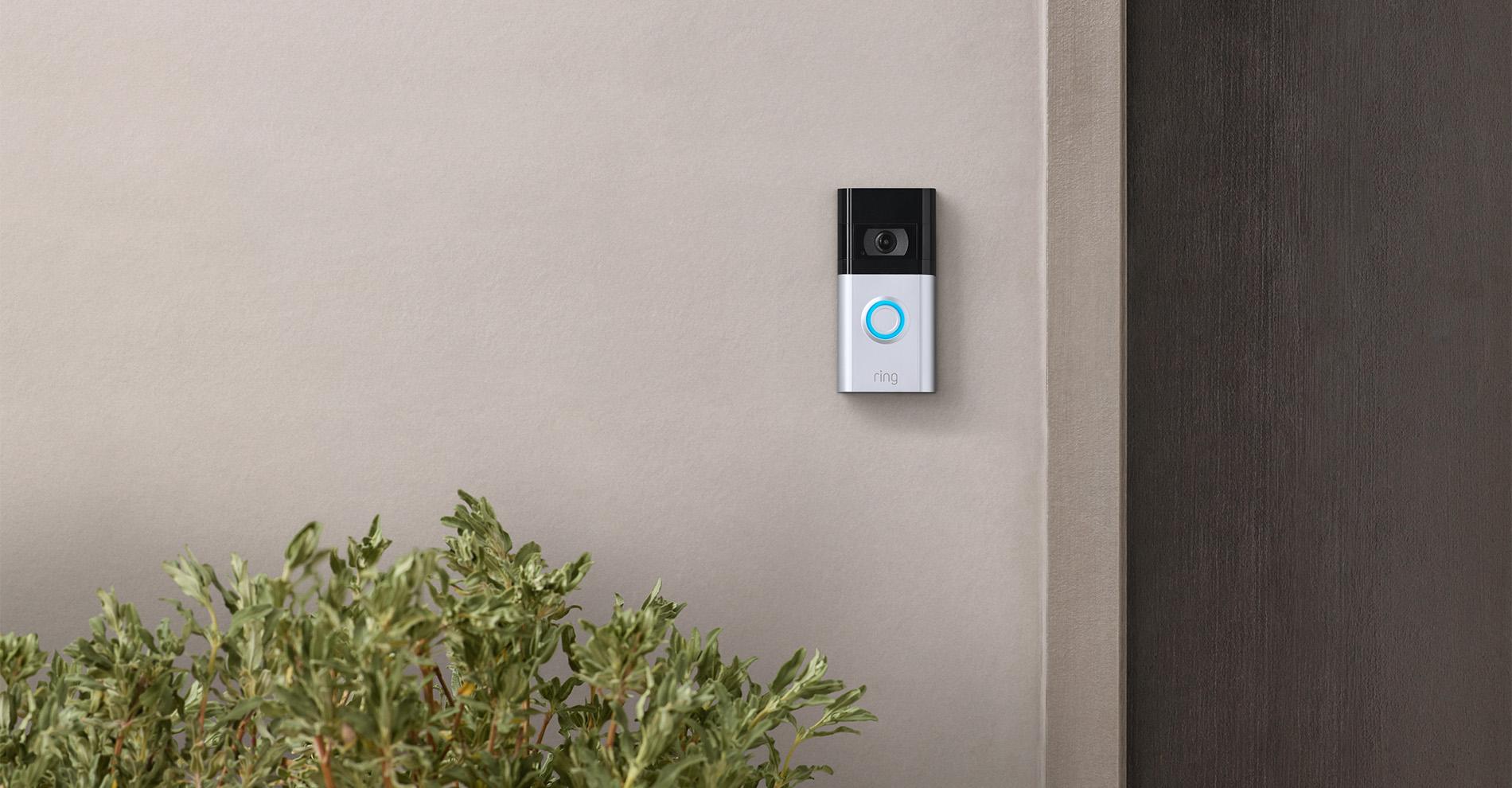
Reliable Wi-Fi is a must for keeping your smart home tech running smoothly. That includes your Ring Doorbell — especially as it provides a live video feed of your doorstep and two-way audio between you and a visitor. You won’t want to miss that important delivery due to a laggy connection!
Whether you've just upgraded your router for a better connection or moved to a new home, you’ll need to know how to change the Wi-Fi on your Ring Doorbell. And our easy guide will walk you through the process in just a few minutes.
When should you change the Wi-Fi on your Ring Doorbell?
We’ve covered a couple of reasons already. But here are the most common situations where you’ll need to change your Ring Doorbell’s Wi-Fi settings:
New router: If you've just upgraded your router, you'll need to update your Ring Doorbell's Wi-Fi settings to connect to the new network.
Relocation: Moving to a new home will mean setting up your devices on your new Wi-Fi network, including your Ring Doorbell.
Network changes: If you update your Wi-Fi network’s name or password, you’ll need to reconnect your Ring Doorbell to Wi-Fi.
Connectivity problems: If your Ring Doorbell has poor video quality or struggles to connect, then switching the Wi-Fi network could help sort the issue.

How to change Wi-Fi on a Ring Doorbell through the Ring app
Changing the Wi-Fi on Ring Video Doorbells is a doddle through the Ring app. Just follow these steps to swap to a new Wi-Fi network:
Open the Ring app: Launch the Ring app on your smartphone or tablet.
Choose your device: Tap on the menu icon in the top-left corner of your screen and select ‘Devices’. Then choose your Ring Doorbell from the list.
Tap on ‘Device Health’: Select this icon from the options menu for your Ring Doorbell.
Change the Wi-Fi network: Scroll down a little and select ‘Change Network’. Then tap ‘Change Wi-Fi Network’ in the pop-up window that appears to enter setup mode.
Connect to the new network: The app will guide you through the process. You’ll need to type in the new network password, so have it to hand.
Complete the setup: Once connected, the app will confirm your new Wi-Fi settings and your Ring Doorbell will be ready to use again.

What to do if the Ring app doesn’t let you change Wi-Fi network
If the option to change the Wi-Fi network is missing from your Ring app, try the following fixes:
Update the Ring app: Make sure you have the latest version of the Ring app installed on your device.
Restart the Ring app: Close the app completely and relaunch it to see if the ‘Change Network’ option is now available.
Reset your Ring Doorbell: Remove your doorbell from its mounting bracket and press the orange setup button on the back. Hold it for around 15 seconds and let go when the light starts flashing. Then fire up the Ring app and see if you can now change network.
Reinstall the Ring app: Uninstall the Ring app from your device and reinstall it. You’ll have to set up your Ring Doorbell from scratch again.
Contact Ring’s support service: If you can’t fix the issue yourself, contact Ring customer support for further assistance.

FAQs
How do I connect my Ring Doorbell to Wi-Fi?
You can get your Ring Doorbell connected to Wi-Fi in no time with these simple steps:
Download the Ring app: Head to the App Store (iOS) or Google Play Store (Android) and download the Ring app. Then create an account or log in if you’ve already got one.
Enter setup mode: Press the orange button on the back of your Ring Doorbell to put it in setup mode.
Connect to your Ring Doorbell: Open the Ring app and follow the instructions to connect your phone or tablet to your Ring Doorbell. You’ll have to scan a QR code on the back of your doorbell, add a location, and choose a name.
Select your Wi-Fi network: In the app, choose your home Wi-Fi network and enter the password.
Wait for your Ring Doorbell to connect: Your Ring Doorbell might take a few minutes to update to the latest software. You can still finish setting things up in the Ring app while it does this.
Why is my Ring Doorbell not connecting to Wi-Fi?
There can be a few reasons why your Ring Doorbell is struggling to connect to Wi-Fi:
Incorrect password: If you’re setting up your Ring Doorbell, double-check that the Wi-Fi password you’re typing out in the Ring app is right.
Weak Wi-Fi signal: Make sure your Ring Doorbell is in close range of your router. Try moving your router nearer to your Ring Doorbell if possible to strengthen the signal.
Wrong Wi-Fi band: Check your router’s broadcasting on the 2.4 GHz band. That’s because all Ring devices can connect to this signal. Some Ring models can run on 5 GHz via channels 100 and above though, so read your device’s manual to check.
Out of battery: If you’ve got a battery-powered Ring Doorbell, check it’s charged. You can see the battery status of your Ring Doorbell in the Ring app.
Need more advice?
Got an old smart doorbell you want to upgrade? Check out our full range of smart doorbells now, plus our selection of security cameras & CCTV for a full home surveillance setup. And find out how to fit models from all the top brands with our handy how to install a smart doorbell guide!