

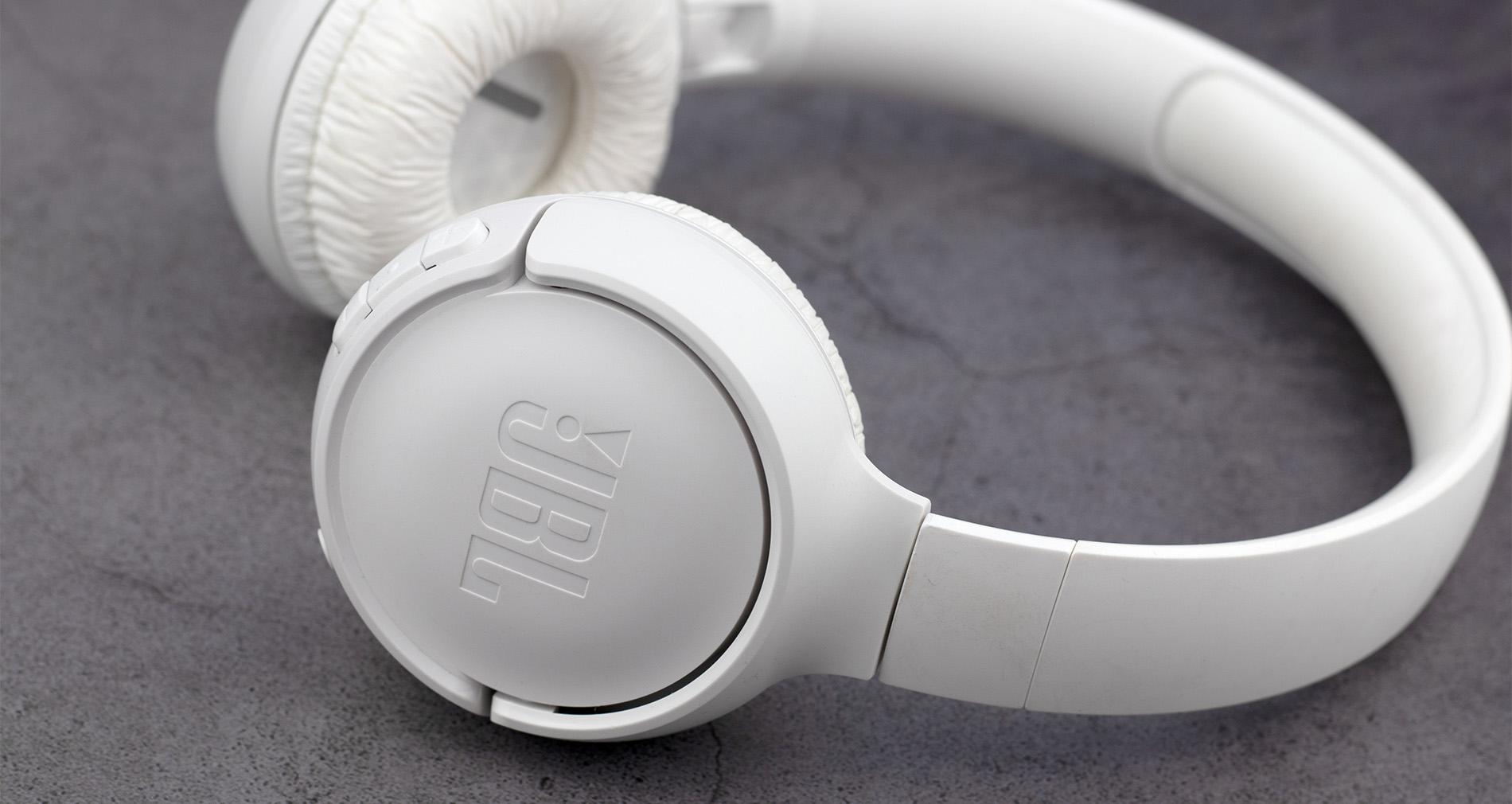
So, you’ve just got yourself a pair of JBL wireless headphones. And we bet you can’t wait to test them out with your favourite playlist or podcast.
But before you can tune in, you’ll need to connect your new headphones to an audio device over Bluetooth. And if you’re rocking an iPhone, our easy step-by-step guide will help you get them synced up without a hitch. We’ll teach you how to pair JBL earbuds too!
Understanding JBL headphones pairing mode
We’ll get to those instructions in a sec. But first, let’s explain what your JBL headphones’ pairing mode is. It’s basically what allows you to wirelessly connect them to a device via Bluetooth. Just turn it on, and your headphones will become discoverable on your phone, tablet, laptop, or any other compatible tech that can stream audio.
So, how do you put JBL headphones in pairing mode? Some models will have a specific Bluetooth pairing button. Just press and hold it, then watch for the blue flashing LED light. It’s your signal that your headphones are ready to get hooked up. But on some JBL headphones, you’ll have to hold down their power button to enter pairing mode instead.

How to pair JBL headphones with an iPhone
Connecting your JBL headphones to an iPhone is really straightforward. Just follow these steps and you’ll be catching up on your number one pod in no time:
Turn on your JBL headphones: Make sure your headphones are charged up and switched on.
Activate pairing mode: Press and hold the Bluetooth pairing button until the LED light starts flashing. If your JBL headphones don’t have a Bluetooth button, turn them off and hold down their power button for around five seconds (until they start flashing blue).
Open Bluetooth settings on your iPhone: Go to the Settings app, tap Bluetooth, and make sure Bluetooth is toggled on.
Select your JBL headphones: Your headphones should appear in the list of available devices. Choose them to get your tech connected.
Confirm the connection: Once paired, the LED light on your headphones will stop flashing and remain solid.
Troubleshooting Bluetooth connection issues
Sometimes, Bluetooth can be a bit finnicky. So, here are some common problems and fixes if you have any hiccups when pairing your JBL headphones with your iPhone:
Pairing failure: If a notification pops up on your iPhone’s screen saying it can’t connect, try turning Bluetooth off and back on again.
Unrecognised device: If your iPhone doesn’t recognise your JBL headphones after being paired before, tap the ‘I’ icon. Then select ‘Forget this device’ and try connecting them from scratch to see if they sync up.
Interruptions: If you hear weird stutters when listening through your JBL headphones, make sure there aren’t any obstacles between them and your iPhone. Also check that another device isn’t trying to pair with your headphones over Bluetooth.
Pairing JBL headphones with other devices
JBL headphones can be paired with loads of devices, not just mobile phones. Laptops, tablets, TVs, or anything that can stream audio via Bluetooth should work. Here’s how to connect them to all kinds of tech:
Laptops: Open the Bluetooth settings on your laptop, make sure it’s turned on, and put your JBL headphones in pairing mode. When your headphones show up on the list, just click them to get connected.
Tablets: Head to the settings app, then navigate to your Bluetooth and switch it on. Press your JBL headphones’ Bluetooth button to activate JBL pairing mode. And tap on your headphones in the list of available devices to sync with.
TVs: Go to your TV's Bluetooth settings, put your headphones in pairing mode, and select them when they appear on-screen.
Other Bluetooth devices: Just follow the same steps as above. All you have to do is make sure that Bluetooth is enabled on the device, and that your JBL headphones are in pairing mode.

How to connect JBL earbuds to your iPhone
JBL earbuds are just as easy to pair with your iPhone as JBL headphones. But there are a couple of things that make the process a little different. Just stick to these steps and you’ll have no trouble hooking them up:
Turn on your JBL earbuds: Open the charging case and remove your earbuds. They should turn on by themselves if charged up.
Activate pairing mode: If your earbuds don’t enter pairing mode automatically, press and hold the buttons on both until the LED lights start flashing.
Open your iPhone’s Bluetooth settings: Go to the Settings app, select Bluetooth, and make sure the Bluetooth slider is in the on position.
Select your JBL earbuds: Your earbuds should appear in the Bluetooth menu. Tap on them to connect.

FAQs
How do I make my JBL headphones discoverable?
Hold down the Bluetooth pairing button on your JBL headphones and wait until the LED light starts flashing. This will indicate that your headphones are in pairing mode and can be discovered by your Bluetooth-enabled devices. For JBL headphones without a Bluetooth button, press and hold down the power button for a few seconds to activate pairing mode.
Where is the Bluetooth pairing button on JBL headphones?
The location of the Bluetooth pairing button will vary depending on which JBL headphones you have. You’ll usually find it on the side or bottom of one of the earcups with a Bluetooth symbol. But some models, like the JBL Tune 520BT wireless headphones, don’t have a Bluetooth button. So, they must have their power button held down to turn on pairing mode.
Any more questions?
Now that you know how to get your JBL headphones and iPhone connected, why not learn about more stuff you can pair your smartphone with? Check out our how to sync your iPhone and iPad article to make files and photos accessible across your Apple devices. Or find out how to connect your smartwatch to your phone.
If you want to discover new ways to listen to music, our beginner’s guide to record players will kickstart your vinyl journey. Or take the show on the road and see our list of the best portable speakers.