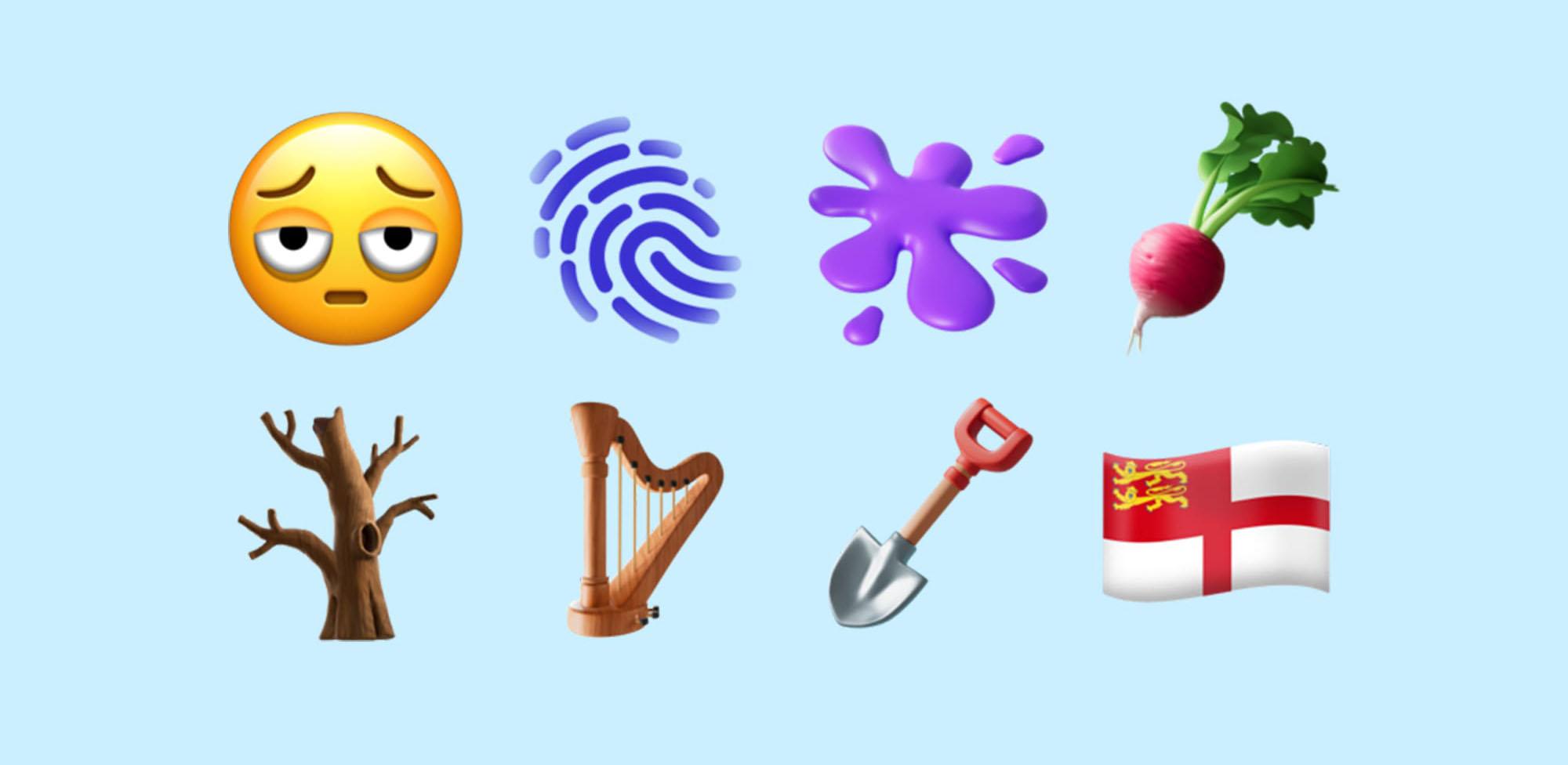



Because we’ve got so attached to our phones, emojis have become an essential part of our communication. Those tiny, expressive symbols add a whole new dimension to our messages, helping us convey emotions and reactions with just a single character.
And emojis work! Social posts with emojis get far more engagement than those without. And whether you’re trying to express annoyance or go for a laughing emoji on your keyboard, there’s a tiny picture that’ll do it a lot faster than words.
While most devices come with built-in emoji keyboards, it’s not always easy to know how to access them and use them quickly during chats. In this guide, we'll explain how to access emoji keyboard shortcuts on Windows, MacBook and more - making it easier for you to express yourself in fun and creative ways.

Keyboard shortcut for emojis
You can really interrupt a chat by having to pause on your keyboard, switch to the mouse or trackpad and then hunt down a list of emojis. So, keyboard shortcuts keep the chat flowing.
On both Windows and Mac, you can summon the emoji keyboard by using a simple keyboard shortcut:
Windows
Windows key + "." (full stop) on Windows
Mac
Command key + Control + Spacebar
This quick combination makes it simple to open up your choice of emojis, allowing you to pick out the perfect emoji to give some colour to your messages, emails and social media posts.
Emojis on Windows keyboard
Windows 10 and later versions come with an emoji picker that can be accessed using the Windows Key shortcut. Once the emoji picker appears, you can browse through different categories of emojis, such as smileys, animals, food, and more, or use the search bar to find a specific one.
This built-in feature means you don’t have to rely on clunky third-party apps and makes adding emojis to messages and documents seamless. Whether you're writing an email, chatting with friends, or working on a project, Windows makes it a breeze to add some flair to your text with colourful emojis.
Tip:
Some of the best keyboards for gaming let you remap your own keys just the way you want them – so you can create your own shortcuts for emojis.
Emojis on Mac keyboard
If you're using a Mac, you're in for a treat - as Apple has made it incredibly simple to access emojis. Besides using the keyboard shortcut above, you can also access emojis through the Mac's Touch Bar (available on certain MacBook Pro models) or by clicking on the emoji icon in the menu bar.
When you click on the emoji icon, a window with a whole host of emojis will appear, and you can either click on the one you want or use the search bar to find a specific emoji. Emojis on Mac are well-organised into categories, making it easier for you to find the perfect emoji to express yourself.

Emojis on touchscreen devices
If you're using a touchscreen device like a smartphone or tablet, the emoji keyboard is typically integrated into the device's virtual keyboard. When typing a message, you'll often see a smiley face icon or a small keyboard switch key. Just tapping on it to bring up the emoji keyboard.
Bonus tip: personalised emojis
The emojis on offer used to be confined to a smiley face or a wink. Even vegetables and champagne bottles are old news. These days, you create custom emojis that are you all over.
Apple let you create a cartoon avatar of your face in all kinds of moods. And Whatsapp has a cool feature that lets you turn pictures on your phone into emojis you can use any time. So now your cute cat can be your go-to in every conversation!
Common emoji shortcuts and tips
If you use emojis all the time, a few quick shortcuts can save you scrolling through pages of faces.
On a Windows PC, press Windows + . (full stop) to open the emoji picker.
On a Mac, it’s Control + Command + Space. Both pop up a small panel where you can search for the one you want.
In apps like Slack or Discord, you can type shortcuts such as ‘:smile’ or ‘:thumbsup’ to drop in emojis quickly.
On your phone, check your keyboard settings to make sure the emoji keyboard is turned on. It’s usually just a tap away. You can also try browser add-ons like the Emoji Keyboard to make it easier to add emojis.
Emojis not showing or working: a quick troubleshooting guide
Sometimes emojis don’t appear quite as expected. Here are a few quick things to check:
Emoji picker won’t open? Close and restart the app or browser. It often sorts itself out.
Keyboard missing emojis? Open your keyboard settings and make sure the emoji option is enabled.
Emojis look like boxes or question marks? It’s worth updating your phone, computer or app. Older versions don’t always support new emoji designs.
Problems in your browser? Clear your cache or switch to another browser to see if it helps.
Can you create custom emoji shortcuts?
You can, and it’s surprisingly easy.
On iPhone or iPad, go to Settings > General > Keyboard > Text Replacement. Add a short code (like “/happy”) and have it automatically turn into your favourite emoji.
On Android, you can use Personal Dictionary or clipboard tools to do something similar. There are also apps like TextExpander that sync your shortcuts across devices, which is handy if you switch between phone and laptop a lot.
Some chat apps, such as Slack or Discord, even let you upload your own emoji designs and give them custom names. This makes your messages feel more personal - and it saves you time hunting through the standard emoji list.
So, go ahead and add a splash of creativity to your messages, and let the emojis do the talking for you. Happy emoting! 😊