

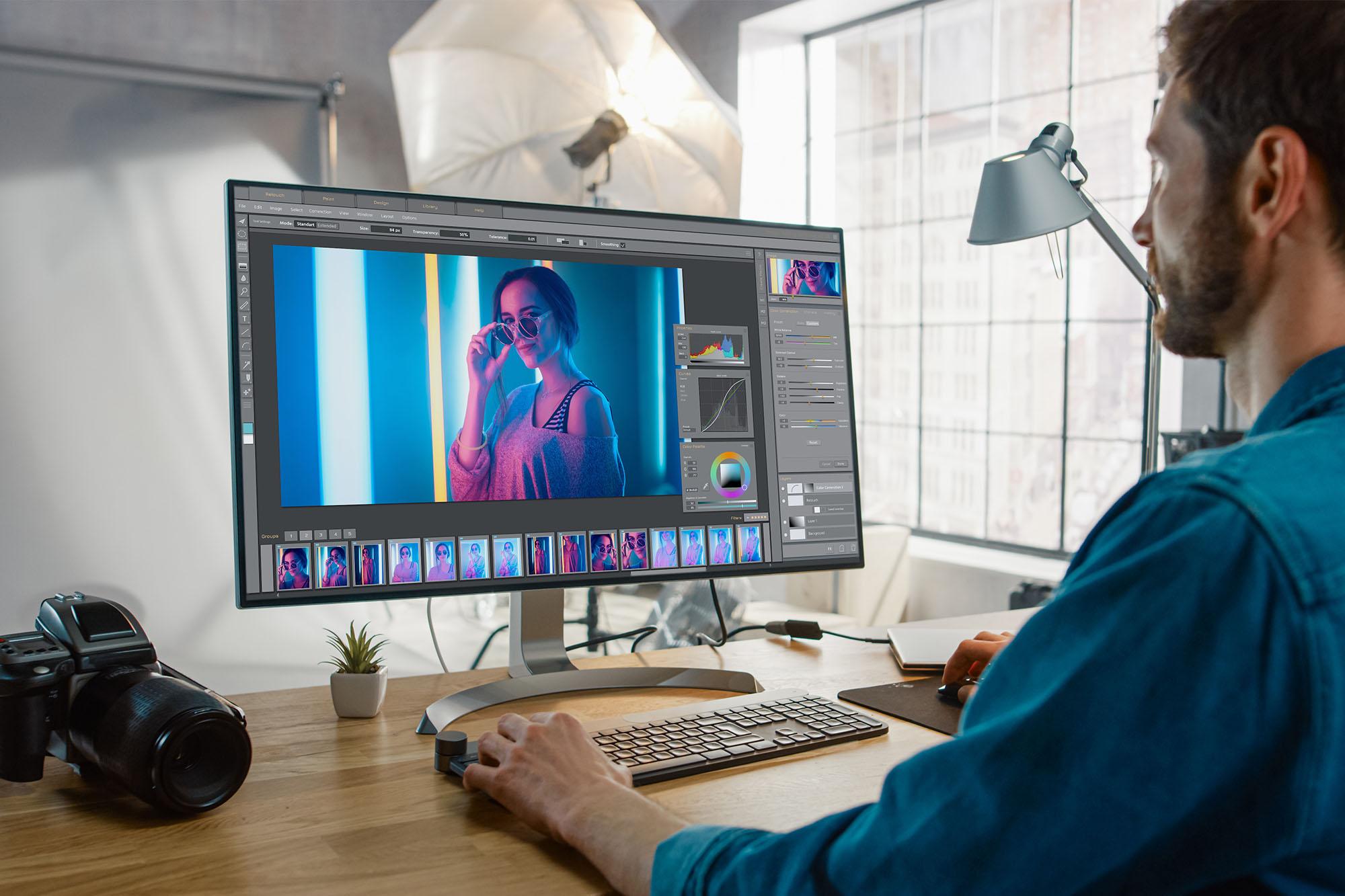
Let's be honest, most of us have tweaked a photo before sharing it online. One study found that 81% of people refuse to post a picture without touching it up first. So if that’s you, there’s a better way to get your pics Insta-ready.
AI photo editors make professional-looking edits much easier, even if you've never used editing software before. From removing unwanted objects to generating new elements, AI editors make advanced photo editing easier than ever.
But with so many different services available, it can be tricky to know which is the right one. Some tools are perfect for quick fixes before posting, while others are geared towards bigger creative projects.
Here's everything you need to know to take your photos to the next level.

What is an AI photo editor?
An AI photo editor uses artificial intelligence to analyse images and edit them automatically. Instead of spending ages tweaking settings manually, many tools can improve a photo for you or make changes based on a text prompt.
You don't need years of editing experience either. Most AI photo editors are designed to be simple to use, so you can improve your photos quickly and easily. They can recognise people, objects, backgrounds and lighting conditions in a photo. They’ll then suggest smart edits to help enhance the overall image, like brightening a dull holiday pic or removing a stranger from the family shot. You can even describe the change you want in plain English, and the AI will do the hard work for you.
How do AI photo editors work?
AI photo editors work out what your image needs by comparing it with millions of other photos they've learned from. This helps them identify ways to improve the image, from boosting colours to sharpening details.
Some tools also use generative AI, which can create new content instead of editing what's already there. That's how features like object removal work. If you remove something from a photo, the AI can fill the gap naturally, like replacing a passer-by with more scenery. It can also extend backgrounds or create entirely new image elements from a text prompt.
Curious what else generative AI can create? Check out our guide to Video generators: what they can and can't do.
Best free and paid AI photo editors
From quick social media tweaks to professional photo retouching, there's an AI tool for almost every type of editing task. Here's how the most popular options compare.
| AI photo editor | Free version | Paid version | Best for |
|---|---|---|---|
| Adobe Photoshop | ✅ Trial / limited features | ✅ Creative Cloud subscription | Professional editing |
| Canva Magic Studio | ✅ Yes | ✅ Canva Pro | Social media content |
| Luminar Neo | ❌ Free trial only | ✅ Subscription or lifetime licence | AI photography tools |
| Pixlr | ✅ Yes | ✅ Pixlr Premium | Quick browser-based editing |
| Microsoft Designer | ✅ Yes | ✅ Additional features via Microsoft subscriptions | Design and image creation |
| Fotor | ✅ Yes | ✅ Fotor Pro | One-click photo enhancements |
| PhotoRoom | ✅ Yes | ✅ PhotoRoom Pro | Product photography |
| Topaz Photo AI | ❌ No free version | ✅ One-time paid licence | Upscaling and sharpening |
| Remove.bg | ✅ Limited free use | ✅ Paid credits/subscription | Background removal |
| Snapseed | ✅ Completely free | ❌ N/A | Mobile photo editing |
Adobe Photoshop
Best for: Professional editing
Photoshop is the industry standard for advanced photo editing. AI features powered by Adobe Firefly help speed up complex edits, making it easier to get professional looking pics.
If you need to remove an unwanted object from an image, write a text prompt and Generative Fill replaces it. Generative Expand is useful when a photo is cropped too tightly and you want to add more space around the subject. And if you need to separate an object from the rest of a photo, AI-powered selections can automatically detect and outline it, so there’s no fiddly manual adjustments.
Canva Magic Studio
Best for: Social media content
Canva's Magic Studio is designed to help you create polished content quickly. It's particularly useful when you need eye-catching visuals but don't have the time or design skills to create them from scratch.
Magic Eraser can remove unwanted distractions from a photo, while background removal helps products and subjects stand out. And if you don't have the right image to hand, AI image generation can create one from a simple text prompt.
The free plan is a great starting point for creating social content. Upgrading to Canva Pro unlocks extra AI tools and premium templates for more creative flexibility.
Luminar Neo
Best for: Photography enthusiasts
Luminar Neo is built for photographers who want to spend less time editing and more time shooting. It's particularly useful if you're working through large batches of photos as it makes jobs like enhancing portraits or improving backgrounds quicker.
For example, Sky AI can replace a grey, washed-out sky without affecting the rest of the scene. And if you’re shooting at night, Relight AI can bring back detail in darker parts of an image. Portrait photographers can also use Portrait Bokeh AI to create a softer, blurred background that helps the subject stand out.

Pixlr
Best for: Quick browser-based editing
Pixlr is ideal when you need to edit a photo quickly and don't want to download any special software. Because it runs in your browser, you can jump straight into editing from almost any device.
If a photo needs a quick refresh, one-click enhancements can adjust lighting and colour automatically to help it look its best. Smart cutout tools make it easier to isolate people or objects for graphics and social posts. Plus, AI image generation can create new visuals from scratch when you need some extra help.
Microsoft Designer
Best for: Everyday creative projects
Microsoft Designer turns ideas into finished designs without needing advanced creative skills. Think party invitations, presentation graphics, social posts or simple marketing materials.
The AI image creation tool can generate original visuals from a text prompt, while design suggestions help improve layouts and make content look more polished. If you're working with existing photos, background editing makes it easy to remove or replace distracting backgrounds.
You can use lots of Microsoft Designer’s features for free. But if you find yourself using it regularly, a Microsoft subscription gives you extra AI tools and lets you create more without hitting usage limits.
Fotor
Best for: Beginners
Fotor is designed for people who want better-looking photos but don't have any editing experience. The tools are straightforward and focused on quick improvements.
A single click can often improve a photo's lighting, colour and sharpness, making it useful for everyday snaps and holiday photos. AI retouching can tidy up portraits, while AI art generation lets you experiment with creative styles and images using text prompts.
PhotoRoom
Best for: Product photography
PhotoRoom is built for anyone selling online. Its AI-powered tools can help turn everyday product photos into marketplace-ready images without needing a studio setup.
Its background removal tool can instantly separate products from distracting surroundings. And AI-generated backgrounds let you place items into new scenes and settings to make your items really pop. You can also create product mockups to show how an item might look in a real-world setting.

Topaz Photo AI
Best for: Upscaling and image quality
Topaz Photo AI focuses on getting the best possible quality from your photos, especially when the original image isn't perfect. It's particularly useful for restoring older family photos or rescuing pics that didn't turn out quite as planned.
If a photo looks slightly blurry, AI sharpening can bring back lost detail. Noise reduction helps clean up grainy images taken in low light. And image upscaling increases resolution when you need a larger version for printing or cropping.
Snapseed
Best for: Free mobile editing
Snapseed packs a surprisingly powerful set of editing tools into an app, without the cost of a subscription. The Healing tool can quickly remove small distractions, like a road sign or litter on the ground.
Selective Adjustments let you brighten a dark subject or enhance a specific area without changing the rest of the image. If a photo still doesn't look quite right, you can manually adjust colour, contrast and exposure without moving it to a computer.

Remove.bg
Best for: Background removal
Remove.bg does exactly what it says on the tin – removes backgrounds from images. Instead of manually tracing around a subject, the tool automatically creates a cut-out around what you want to keep. You can then download it as a transparent PNG, ready to drop into presentations or online listings.
If you're working with lots of images, bulk processing speeds things up. Instead of removing backgrounds one at a time, you can edit multiple images in a single batch. It's particularly useful for online sellers updating large product catalogues.
Tips for using AI photo editors responsibly
A few simple checks can help keep your edits looking natural. Keep these tips in mind when using AI photo editors:
Keep a copy of the original image so you can easily compare changes or start over if needed.
Be transparent about major AI-generated edits, especially if you've added, removed or significantly altered parts of an image.
Check the final result carefully for visual errors, unrealistic details or other AI-generated mistakes.
Respect copyright and image ownership rights when editing or sharing content.
Avoid edits that could mislead people or misrepresent what happened in a photo.
AI works best when it's enhancing photos instead of completely changing them. And if you prefer making quick edits on the go, check out our guide on how to edit photos on iPhone.

Final thoughts
From quick touch-ups to advanced creative projects, AI photo editors can help you do more with less effort. The right tool depends on what you're creating, whether that's social content, product photos or photography projects. When you're ready to level up your setup, check out our guide to 3 laptops for photo editing or explore our range of AI laptops.
FAQs
What is currently the best AI photo editor?
Adobe Photoshop is widely regarded as the best all-round AI photo editor thanks to its Generative Fill and Neural Filters, though Canva Magic Studio is the stronger choice for quick social media content.
Which AI can edit photos perfectly?
No AI edits photos perfectly every time, but Photoshop and Luminar Neo come closest for professional results. Always review AI edits and use strength sliders to keep things looking natural.
What is the best AI photo editing app?
Snapseed is the best free mobile AI photo editing app, while PhotoRoom is the top pick for product photography on your phone.
Which photo editor is 100% free?
Snapseed is completely free with no subscription, and Pixlr offers a solid free browser-based editor for quick edits.