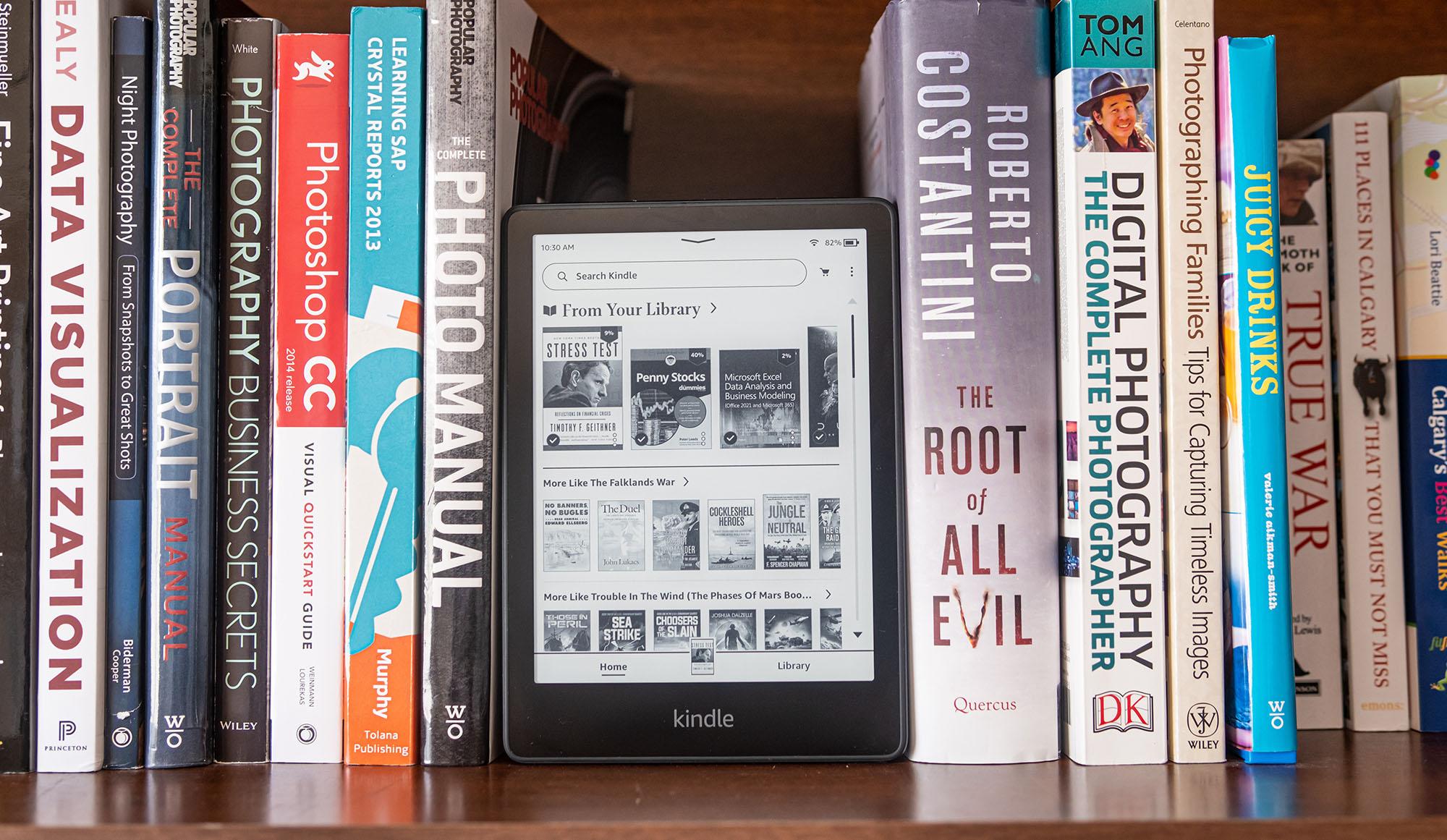


With a Kindle, you can carry a whole library with you in your bag. That’s the beauty of e-readers – you don’t have to lug heavy hardbacks on your hols or your daily commute. There’s just one device. And loads and loads of great books.
And boy is there plenty to read on them. If you’re new to e-readers – and have no idea how to download books on your Kindle – we’ve got you covered. Follow these steps below, and you’ll have all your faves (and new discoveries) on your device in no time.


Downloading books straight from the Kindle Store
The Kindle Store is an absolute treasure trove of books. And it’s the most straightforward way to get new titles on your device. Just follow these steps…
Open the Kindle Store – If you’re using a Kindle device, tap the ‘Home’ button to bring up the main screen. Then press the ‘Library’ icon and select ‘Store’ from the menu.
Search for a book – Use the search bar at the top to find the book you want. You can search by title, author or keyword. Or browse through categories like ‘Best Sellers’, ‘New Releases’ or ‘Genres’ if you’re not looking for anything specific.
Select a book – Press on the cover of the book or the title to see more details. Read the synopsis, reviews and other info to see if it’s the right book for you.
Download the book – Like what you see? Tap the ‘Buy Now with 1-Click’ or the ‘Free’ button to buy the book. If you’ve got a Kindle Unlimited subscription, you might see an option to ‘Borrow’ the book instead.
Start reading – When the download is complete, you’ll find the book in your ‘Library’. Hit the book cover, cosy up and start reading.

Using ‘Send to Kindle’ to add personal documents
If you’ve got personal docs, PDFs or other e-books that you want to read on your Kindle, you can use the ‘Send to Kindle’ feature. Here’s how:
Prep your document – Make sure your doc is in a supported format (PDF, MOBI, AZW, TXT, etc). If it’s not, you can convert it using online tools or software like Calibre.
Find your Kindle email address – Go to the Amazon website and sign into your account. Navigate to ‘Manage Your Content and Devices’ and click on the ‘Preferences’ tab. You’ll see your Kindle email address listed there – it should look like ‘[email protected]’.
Send the doc – Attach the document to an email and send it to your Kindle email address. You can also use the ‘Send to Kindle’ email address to send documents from your email provider’s web interface or mobile app.
Check your Kindle – The document will be delivered to your Kindle, usually within a few minutes. You can then find it in your library when you’re ready to start reading.
Transferring books via USB
Not every book is available on the Kindle Store. But with a USB stick, it’s simple to transfer them over to your Kindle…
Connect your Kindle to your computer – Grab a USB cable and plug your Kindle into the computer. It should appear as a removable drive.
Find the books – On your computer, find the books your want to transfer. They should be in a supported format (PDF, MOBI, AZW, etc). If the books are in a different format, you can convert them using software like Calibre (but more on that later).
Copy the books – Drag and drop the books from your computer to the ‘Documents’ folder on your Kindle. Make sure your files are in the correct folder – if they aren’t, they won’t pop up in your Kindle’s library.
Eject your Kindle – Once the transfer is all done, safely eject your Kindle from your computer. Disconnect the USB cable and switch on your Kindle.
Locate the books – If you’ve done everything properly, the books should now be there in your ‘Library’. Tap the cover of the book to open it up and get reading.

Downloading books on Kindle apps for PC and Mac
Sometimes you might want to read a few chapters on your PC and Mac. And you can download books straight to them…
Download and install the Kindle app – Head to the Amazon website and download the Kindle app for your operating system (Windows or macOS). Install it and sign in using your Amazon account details.
Launch the Kindle app – Open the Kindle app on your computer. Your library will show up, displaying any books you’ve already purchased.
Search for a book – Type the book you’re looking for into the search bar. Or browse through categories and recommendations instead.
Download it – Press on the title or cover of the book to open up the detail page. Click the ‘Free’ or ‘Buy Now’ button to buy the book. It’ll then automatically download to your Kindle app, so you don’t have to do anything else.
Get reading – The book will appear in your library once the download is complete. Just click on the cover and you can dive right into your new read!

Downloading books on Kindle apps for iOS and Android
With the Kindle app for iOS and Android, it’s easy to download and read books on your tablet or smartphone…
Install the Kindle app – Go to the App Store (iOS) or Google Play Store (Android) and search for the Kindle app. Download and install it and sign in with your Amazon account.
Open the Kindle app – Launch the app – you’ll see your library, including any books you’ve already bought.
Search for a book – Use the search bar to find the book you want. You can also browse through categories and recommendations if you’re after something new to read.
Download the book – Tap on the book cover or title to open up some more info about it. If you like the sound of it, tap the ‘Buy Now’ or ‘Free’ button to get the book. It’ll then automatically download to your Kindle app.
Start reading – Once the download is done, the book will pop up in your library. Press on the cover and you can start reading.

Sideloading books using Calibre
Calibre is a super handy e-book management tool that’ll help you organise and convert your e-books. It’s especially useful for sideloading books that aren’t available in the Kindle Store. So, if there’s something you really want to read – but can’t access it the normal way – you should definitely download it. Here’s how to use Calibre:
Install Calibre – Go to the Calibre website and download the software, then install it on your computer.
Add books to Calibre – Open Calibre and click on ‘Add Books’ to import your e-books. You can drag and drop files or use the ‘Add’ button to select files from your computer.
Convert books – If your books are in a format that isn’t supported by Kindle (like EPUB) you can convert them. Select the book in Calibre, then click on ‘Convert Books’. Choose the output format (MOBI or AZW3) and click ‘Ok’.
Connect your Kindle – Use a USB cable to connect your Kindle to your computer. The Kindle should show up as a removable drive.
Transfer the books – In Calibre, pick the book you want to transfer. Then click on ‘Connect/Share’ and choose ‘Connect to device’. Calibre will automatically transfer the book to your Kindle.
Eject your Kindle – Once the transfer is finished, safely eject your Kindle from your computer. Disconnect the USB cable and turn on your Kindle.
Find the books – The book (or books) should now appear in your ‘Library’. Tap on the book cover and start reading.

Troubleshooting common download issues
Like any bit of tech, you might run into the odd issue with your Kindle. Here’s a few of the most common problems and how to fix them…
Book not downloading:
Check your internet connection – Make sure you’re actually hooked up to the Wi-Fi.
Restart your device – It’s the oldest trick in the book, but sometimes, that’s all you need.
Clear cache – On your Kindle, go to ‘Settings’ > ‘Device Options’ > ‘Manage Wireless Network’ > ‘Forget Network’ and then reconnect to the Wi-Fi.
Check for updates – Is your Kindle’s software up to date? To check, go to ‘Settings’ > ‘Device Options’ > ‘Check for Updates’.
Book not appearing in library:
Sync your library – Fire up your Kindle and head to ‘Settings’ > ‘Device Options’ > ‘Sync Now’.
Check your account – Log in to your Amazon account and make sure the book is in your ‘Content and Devices’ section.
Re-download the book – If the book is in your account but not on your device, try downloading it again.
Document not sending to Kindle:
Check email address – See whether you’re sending the document to the correct Kindle email address. Even a small typo will cause problems.
Check email settings – In your Amazon account, go to ‘Manage Your Content and Devices’ > ‘Preferences’ and check that your email address is approved for sending documents.
Check file size – Large files might not send properly. Try compressing the file or sending it over in smaller chunks.
Book not opening:
Check the file format – The book needs to be in a supported format (MOBI, AZW, PDF etc).
Convert the book – If the book’s in a format that isn’t supported, use Calibre to convert it.
Check for corrupted files – The book could be corrupted. Try downloading it again or using a different file.

Need more advice?
So, that’s how to download books on Kindle. Not got yourself an e-reader just yet? Check out Which Kindle e-reader should I buy? And if your Kindle’s on the go-slow, here’s how to reset your Kindle.