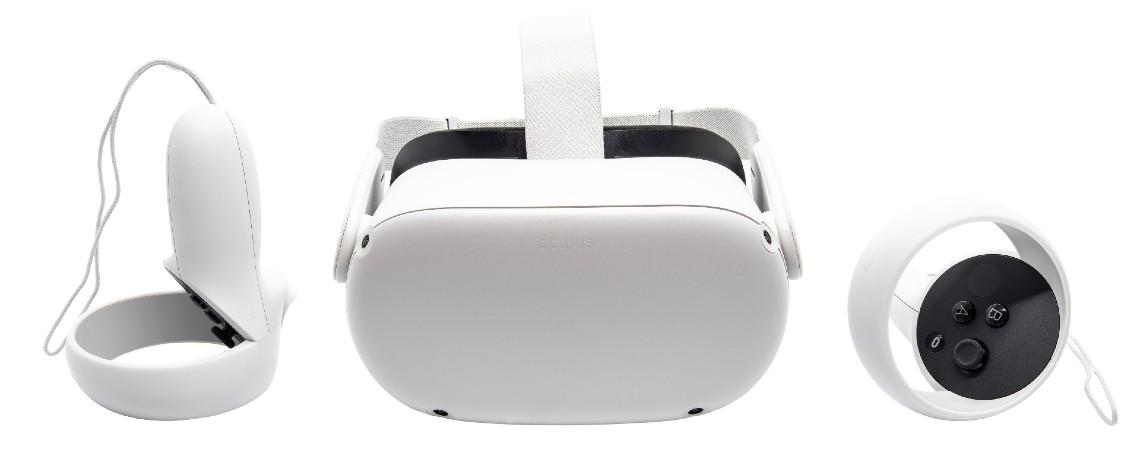


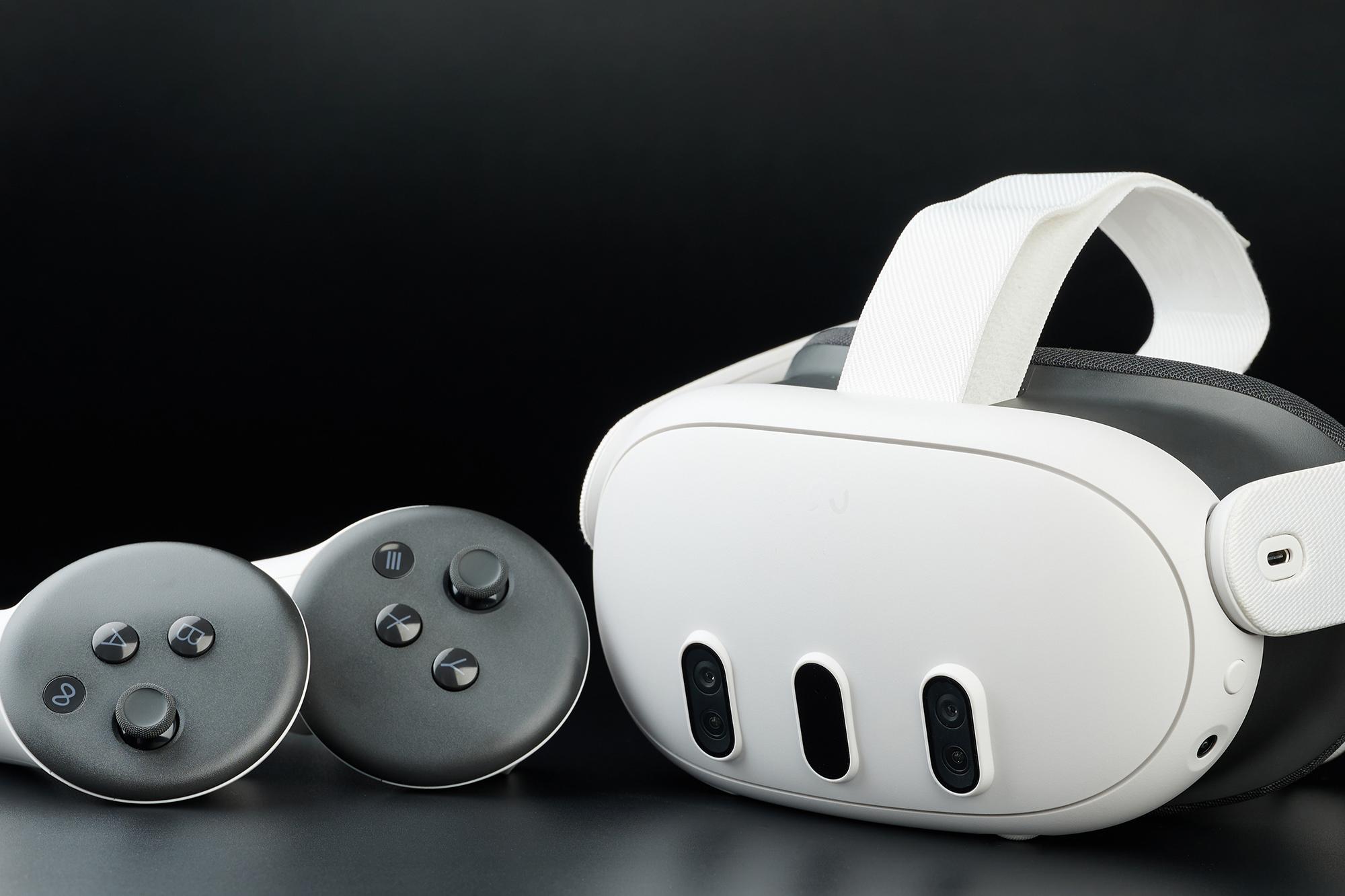
VR is pretty amazing. But sometimes, you want to share that epic experience with family or a group of mates. Whether you’re taking turns on a new game or helping someone learn the controls, casting your Meta Quest headset to a TV is a great way to get everyone involved. The good news? It’s incredibly easy to set up.
In this mini guide, we’ll run you through how to cast your Meta Quest 3, 3S and 2 to your telly. Plus, we’ll help you troubleshoot any pesky technical problems so you can get back to the fun.
Casting Meta Quest 3 to your TV
The Meta Quest 3 makes casting super simple. This is how to do it:
Turn on your headset and make sure it’s connected to the same Wi-Fi network as your TV or casting device.
Put the headset on and press the ‘Meta’ button on the right controller to bring up the menu.
Select the camera icon, then choose ‘Cast’.
You’ll see a list of available devices. Pick your TV or Chromecast device.
Confirm the casting, and you’re ready for action!
Your TV should now show exactly what you see in the headset. If it doesn’t, check your Wi-Fi connection or try restarting both devices. Sometimes switching it off and on again really does work!

Casting Meta Quest 3S to your TV
The Meta Quest 3S works almost exactly like the Quest 3. The steps are nearly identical:
Connect your TV and Quest 3S to the same Wi-Fi network.
Open the ‘Quick Settings’ menu in the headset.
Tap the ‘Cast’ icon.
Choose your TV or casting device from the list.
Confirm the connection.
TV isn’t showing up? See if it supports casting or has a Chromecast plugged in.

Casting Meta Quest 2 to your TV
Casting with the Meta Quest 2 is also nice and easy, although the interface may look a bit different:
Put on your headset and press the ‘Oculus’ button.
Go to the sharing menu.
Select ‘Cast’.
Choose your TV or Chromecast device.
Confirm the casting.
If you don’t see your TV, make sure that it’s actually on and connected to the same Wi-Fi network. Without that, you won’t get very far.

Using the Meta Quest app for casting
You can also cast using the Meta Quest app on your phone. This is handy if you prefer to control things without using the headset. Here’s how…
Open the Meta Quest app on your phone.
Tap the ‘Cast’ icon in the top right corner.
Choose your headset and the device you want to cast to.
Press ‘Start’.
Your phone will mirror the headset’s view. And, if your phone supports casting, you can send that to your TV too.

Casting via Chromecast or compatible Smart TVs
Most modern TVs support casting, especially if they have Google Chromecast built-in or plugged in.
To cast using Chromecast:
Plug in your Chromecast and connect it to your TV.
It’ll need to be on the same Wi-Fi network as your headset. If it’s not, sort that out first.
Follow the casting steps from your headset or the Meta Quest app.
When your TV has casting built straight into it (like a lot of Android or Google TVs do), you don’t need a separate Chromecast. Just select your TV from the casting list and get gaming!
Alternative casting methods: HDMI and third-party apps
If casting wirelessly doesn’t work, it’s not game over. Just try these methods instead…
HDMI cable – You can connect your phone or PC (that’s casting the headset view) to your TV using an HDMI cable. This gives a far more stable connection with zero lag.
Third-party apps – Apps like AirScreen or AirPlay (for Apple devices) can help cast to TVs that don’t support Chromecast. Just install the app on your telly and follow the instructions. Keep in mind though that third-party apps might have some lag or be lower quality, depending on your setup.
Troubleshooting common casting issues
Casting usually works smoothly. But here are some tips if things go a bit wrong…
TV not showing up:
Make sure your TV is turned on and connected to Wi-Fi.
Restart your headset and TV.
Check if your TV supports casting or has Chromecast.
Lag or choppy video:
Move your headset and TV closer to your Wi-Fi router.
Close other apps or devices that are using the network.
Use a wired connection (HDMI) for better stability.
No sound:
Look at your TV’s volume and input settings.
Double check that the casting device supports audio.
Restart the casting session.
App not working:
Update the Meta Quest app.
Restart your phone.
Reinstall the app if needed.

Need more advice?
For the complete lowdown on Meta’s latest headset, check out our piece Meta Quest 3: everything you need to know. And for the greatest titles, don’t miss this article – the best Meta Quest 3 games. There’s plenty of epic adventures on our list!