

So, you've just unboxed your Nintendo Switch 2 — congrats! Whether it’s an upgrade for your existing Switch or your first ever Nintendo system, we bet you can’t wait to power it on and start playing. But before you fire up a game, there are a few important things you should do first.
From transferring data from your old Nintendo Switch to setting up cool online features, our guide has all the advice you need for making a perfect start on Switch 2. Let’s-a-go!
Overview:

Apart from the console itself, having these other items to hand will make the Switch 2 setup process even smoother:
Nintendo Switch: This is only if you own the previous-gen console and want to move its data to your Switch 2.
AC adapter: It should come included with your new Nintendo system.
Wi-Fi password: You’ll need this to connect your Switch 2 to the internet.
microSD Express memory card: This is optional, and only necessary if you want to bump up your Switch 2’s storage before transferring data from your old Switch.
Nintendo Account login details: Required for moving data between your Switch and Switch 2 and accessing other features. Don’t worry — we’ll tell you how to create one from scratch if you don’t have one.
A smartphone (or tablet): This can help you quickly log in to your Nintendo Account (with a QR code). You’ll also need it if you want to set up Parental Controls fast.

Once you’ve taken your shiny new Switch 2 out of the box, just follow these simple steps to get it up and running:
Connect your Switch 2 to power: Plug the included AC adapter into a mains socket and connect its USB-C cable to your console.
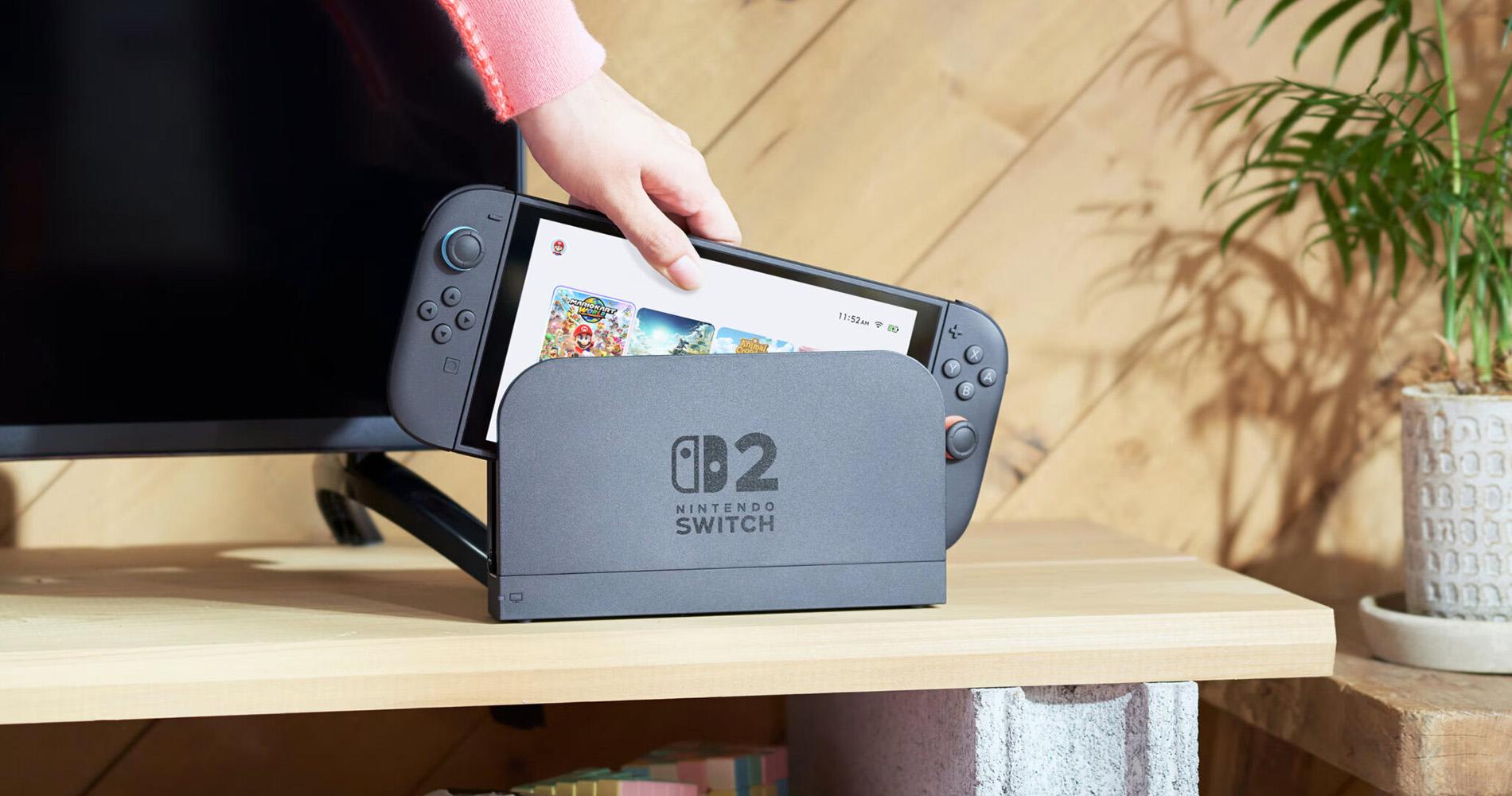
Turn on the Switch 2: Press the power button on the top-left to switch on your system.
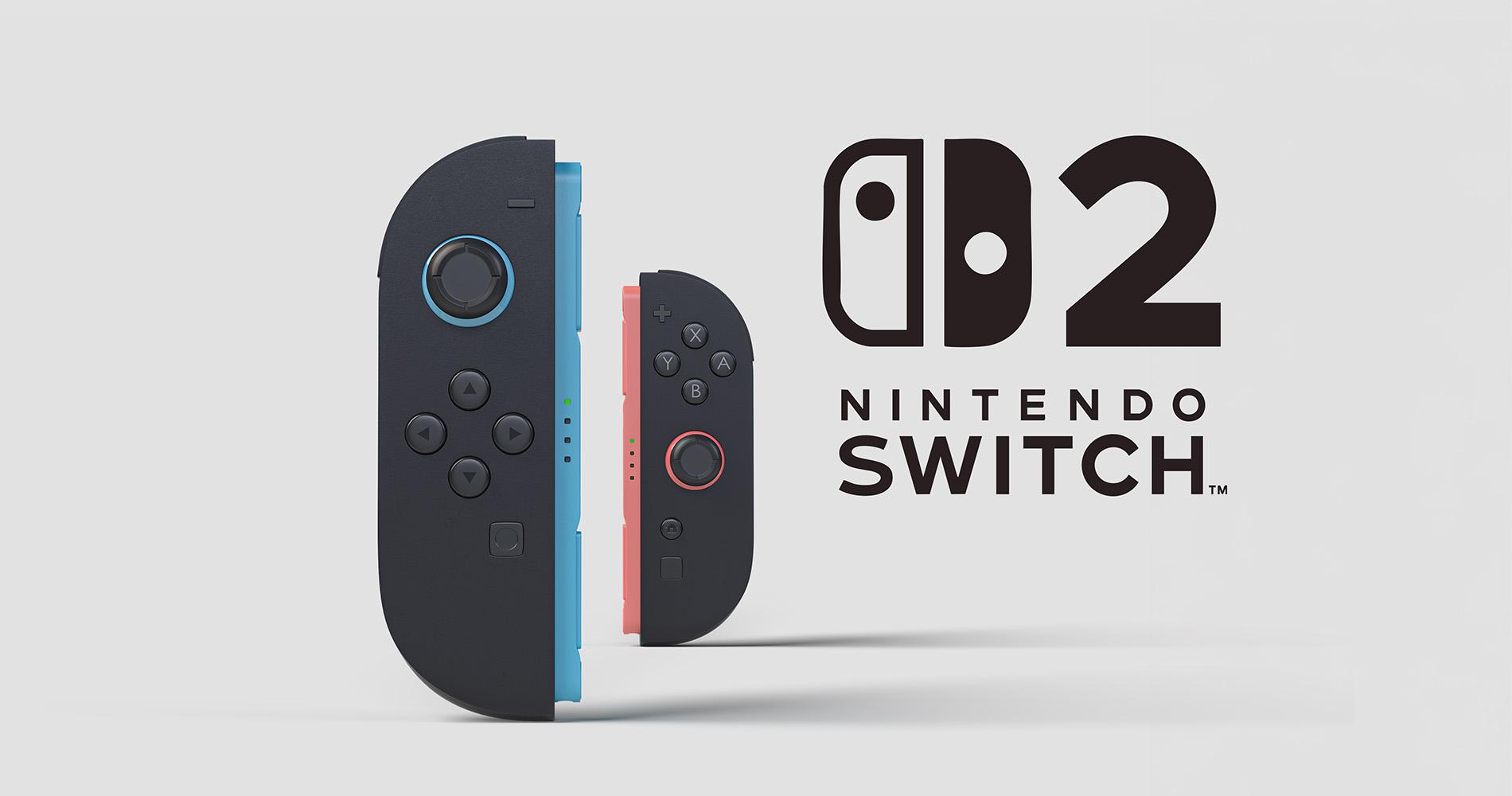
Attach the Joy-Con 2 controllers: They’re magnetic, so just snap them onto your Switch 2 when prompted on the display.
Follow the on-screen instructions: Start setting up your console by choosing your language, region, Wi-Fi network, and time zone.
Got a Nintendo Switch? It makes loads of sense to move all your data over to your new Switch 2. That way, you can just pick up playing where you left off. And thanks to Nintendo’s System Transfer feature, you can do this in just a few minutes.
It lets you migrate Users, purchased digital games, save data, system settings, plus captured screenshots and videos all in one go. And you’ll only need a User linked to a Nintendo Account on the source system (your OG Switch) and an internet connection to do it!
Please note: If you want to expand your Switch 2’s storage from the get-go, insert a microSD Express memory card before doing a System Transfer. This is especially important if you upgraded your Switch 1’s storage and your saved data exceeds the Switch 2’s 256 GB of built-in storage.
If the Switch 2’s your very first Switch console or you didn’t perform a full System Transfer, then you’ll need to create a User profile. You’ll be asked to do this during the initial setup, and it’s where all your game progress and save data will be stored.
You can also link your User to a Nintendo Account, which you’ll be prompted to create too. This allows you to access the eShop to buy games, subscribe to Nintendo Switch Online, and even configure Virtual Game Cards remotely from Nintendo’s website. If you’ve got an account already, just sign in to get reconnected and use it as a new User.
If you’re setting up secondary Users (like for family members who won’t be buying games or playing online), you don’t have to link them to Nintendo Accounts. You can always create and connect them later if needed.
Nintendo Switch consoles provide fun for the whole fam. And if you’ve got kids who’ll want to get their hands on your Switch 2, it might be a good idea to set up Parental Controls. It’s a great feature that’ll make sure they’re gaming safely. You can apply age-based restrictions for content, plus set play time limits so they’ll have enough time to do their homework.
While you can configure these on the console, the easiest way to set them up is through the Nintendo Switch Parental Controls app. Just download it on your phone or tablet (it’s available for iOS and Android). Then sign in with the Nintendo Account you used to create the User profile (that you want to apply Parental Controls to).

Want to make sure no one messes with your game progress? Then it’d be a smart idea to set up a system lock, which is basically just a passcode for your Switch 2. It’ll keep anyone from accidentally spending your in-game currency too!
Setting up a Switch 2 system lock takes just a few seconds:
Head to ‘System Settings’ from the home menu.
Scroll down to ‘System’ and then choose ‘Console Lock’.
Create a PIN (make it something easy for you to remember).
If you just want to stop others from loading up your Virtual Game Cards without your permission, there’s a separate setting for that. Go to your ‘User Settings’ (tap your profile icon at the top of the home screen), and select ‘Online License Settings’ to toggle the option on or off.
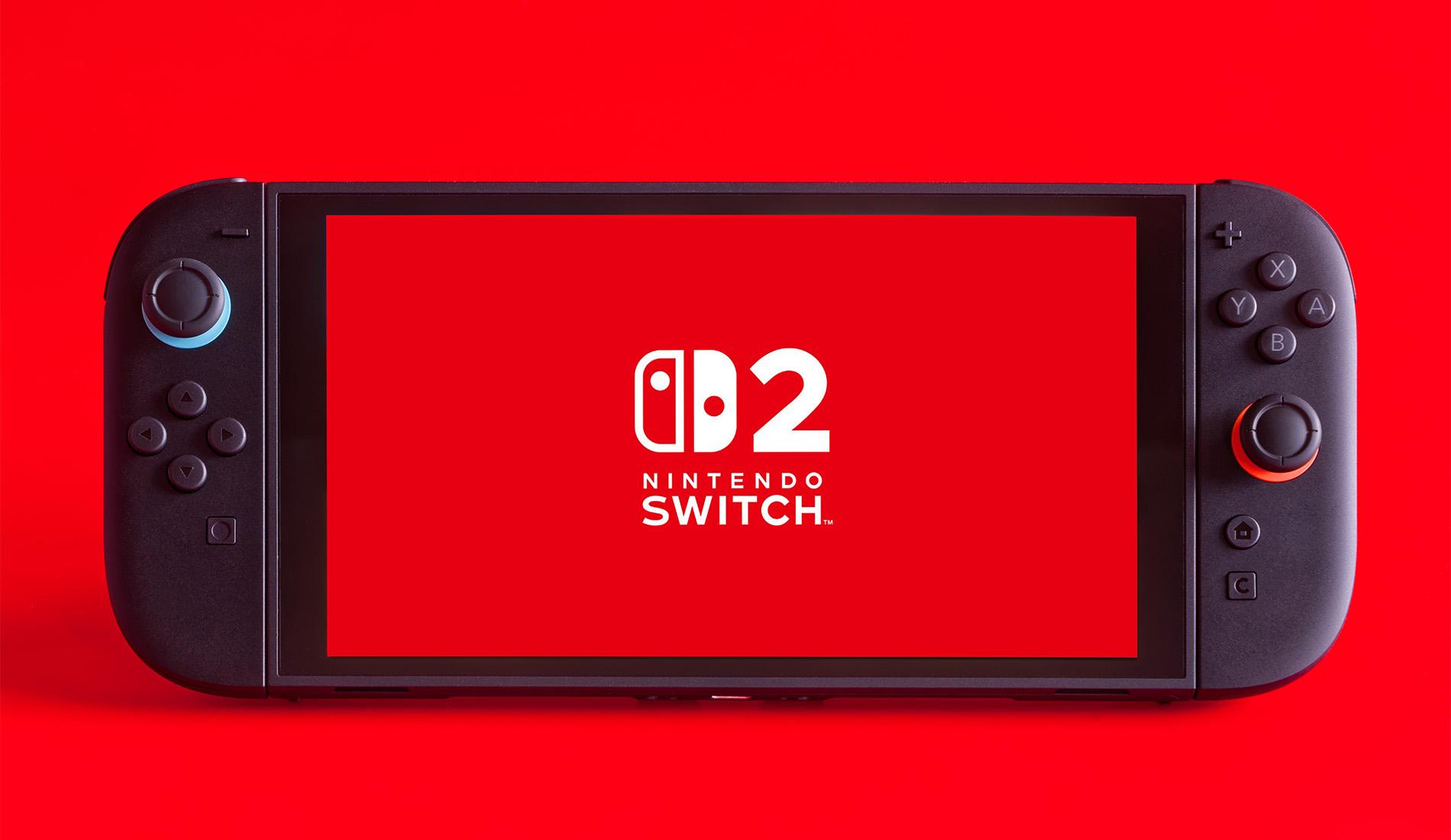
The Nintendo Switch 2’s big and bright screen is stunning. And with twice as many pixels as the old system, it makes everything look sharper and more detailed. But like other handheld games consoles, you’ll need to be careful not to scratch its display. That’s why before starting up a new adventure, guard it with a Switch 2 screen protector.
It can save your system’s display from long-term wear and tear. And it shouldn’t take long to fit either — just make sure to clean your Switch’s screen thoroughly before applying and line it up nicely. You can also use a credit card to flatten it out so there aren’t any trapped bubbles.


Now that you’ve fully set up your Switch 2 and protected its screen, it’s time to have some fun! We stock loads of Nintendo Switch games, including the latest titles for the new console. And with your Nintendo Account, you can purchase even more content from the eShop and download it directly to your system.
Why not check out our Nintendo Switch 2 launch games article too? It lists everything that was released alongside the next-gen Switch on 5 June, including our top three must-have titles. Or for a heads up on what’s coming out later this year and beyond, read our upcoming Nintendo Switch 2 games guide instead.


See that square ‘C’ button on your Switch 2’s right (red) Joy-Con? It launches GameChat, one of the Switch 2’s coolest features that lets you and up to 11 of your friends talk while you play. Just press the button to strike up a convo.
You can share your screen in real-time with up to four people too — even if you're all playing different games. It’s perfect if your mate needs some tips getting through a tough level. And GameChat is completely free until 31 March 2026. So, you’ve got loads of time to enjoy it before a Nintendo Switch Online membership is needed.
Subscribing to Nintendo Switch Online will let you access even more epic features on your Switch 2. It’ll let you compete online against friends or players around the world in compatible games. And it’ll allow you to do cloud saves, so your game progress will be safely backed up.
But best of all, a membership unlocks a growing library of retro titles from old Nintendo systems like the NES, SNES, and Game Boy. If you opt for the Expansion Pack tier, you’ll also get access to Nintendo 64 and Game Boy Advance titles. Plus, DLC bundles for selected games.
And exclusive to the Switch 2, you can even play some GameCube goodies from the early 2000s — now with sharper graphics and online multiplayer added. You can already fire up modern classics like The Legend of Zelda: The Wind Waker and Soulcalibur II, with even more Nintendo fan-faves in the pipeline (including a couple of acclaimed Pokémon games).


Finally, make your Nintendo Switch 2 truly yours with some gaming accessories. The system only launched last month, but there are already loads of extras you can buy to get more out of your new console:
Nintendo Switch 2 Camera: Want to see your mates when using GameChat? Just connect this gadget to your Switch 2’s top-mounted USB-C port. Some titles take things a step further by using your camera feed in the gameplay itself.
Switch 2 Pro Controller: If you find the Joy-Con 2s a bit fiddly, this ultra-comfortable controller is a cool upgrade. It includes a headphone jack and new GL and GR buttons that you can map to existing buttons — perfect if you’ve got a particular playstyle.
Joy-Con 2 Wheels: Racing games will feel way more realistic when you snap your Nintendo Switch 2 controllers into these. Those strong magnets should keep them firmly in place when taking tight turns or dodging bananas in Mario Kart World.


Old Switch accessories work too…
If you bought extra Nintendo Switch controllers for your original console, most should also be compatible with your Switch 2. Whether you're teaming up for some co-op fun or going head-to-head with a friend, you can easily pair your old Joy-Con wireless controllers with the new system. And if you’ve got a Switch Pro Controller lying around, that’ll connect just fine as well.
Should I transfer my Switch 1 data to Switch 2?
If you’re planning to retire your old Switch or want all your save data and profiles on one device, transferring makes sense. You can do it via local wireless or cloud, but keep in mind that some methods may reset your old console. If you’re keeping both, you might want to skip the full transfer and just move over what you need using Virtual Game Cards.
What SD card is needed for Switch 2?
The Switch 2 uses microSD Express cards only. These are faster and designed to handle the console’s upgraded performance. Regular microSD cards that worked on the original Switch won’t work for storing games on the new console.
Does a Switch 2 play Switch 1 games?
Yes, the Switch 2 is mostly backwards compatible with Switch 1 games — both physical and digital. A few titles may have minor issues or need updates, but most run smoothly. Some even look and perform better on the latest hardware.
Do you need internet for Switch 2?
Not for basic setup or offline play. But if you want to access the Nintendo eShop, play online, or use features like GameChat, you’ll need an internet connection and a Nintendo Account.
Is the Switch 2 4K?
Yes. When docked in TV mode, the Switch 2 can output games in 4K resolution at up to 60fps. In handheld mode, it maxes out at 1080p. That means if you’ve got a 4K TV, you’ll definitely notice the upgrade in visual clarity.
Can you use Switch 1 controllers on Switch 2?
You sure can! Switch Joy-Cons and Pro Controllers work wirelessly with the Switch 2. Just note that older Joy-Cons don’t support new features like mouse control or the GameChat button. They also can’t physically dock to the new console.
How long does a Switch 2 battery last?
Battery life ranges from about 2 to 6.5 hours, depending on what you’re playing and your settings. More demanding games and higher brightness will drain it faster. But you can tweak things like screen brightness and rumble to stretch your playtime.
Need more help?
Our Nintendo news section here on TechTalk is full of awesome advice on Nintendo Switch 2 consoles, older systems, and upcoming games.