

If you’ve ever wished you could chat with your PC or Xbox friends while battling on your PlayStation 5, well, you can! Sony’s partnership with gaming giant Discord lets you join voice channels, coordinate with your squad while you’re teaming up in crossplay or just hang out. And you can do it all without having to juggle multiple devices too. Pop your headset on, grab your controller and let’s talk all things Discord…
Is Discord available on PS5?
Good news – it sure is! Discord voice chat is officially supported on PS5. Sony finally rolled out the integration back in 2024, and it’s now a standard feature for any of their consoles running the latest system software.
Here’s a few of the big things you’ll need to know about…
Voice chat only – You can’t access text channels or send messages from your PS5. It’s strictly for your voice.
No standalone app – You haven’t got to download a Discord app from the PlayStation Store here. Instead, Discord works through account linking and the PS5 interface itself. So, there’s less installing, more playing!
Cross-platform magic – Talk to friends on PC, mobile or other platforms while you’re playing on your PS5. Who cares about the console wars, eh?
So, while it’s not the full Discord experience, it’s pretty darn close. And it’s genuinely a huge step forward for console gamers who want better communication. After all, they’ve been looking jealously over at their PC cousins for years now.

How to link your Discord and PS5 accounts
Before you can settle in for a good chinwag, you need to link your PlayStation Network (PSN) account to Discord. Here’s how to get Discord on PS5 going:
Update your PS5 – Go to Settings > System Software > System Software Update and Settings. Install any available updates that are there. This’ll make sure that Discord integrates smoothly without a hitch.
Navigate to Linked Services – From the PS5 home screen, open Settings > Users and Accounts > Linked Services. Then select Discord.
Start the linking process – You’ll see a QR code flash up on your screen. You can scan the code with your phone through the Discord app. Or, if you prefer, visit discord.com/activate on a PC or mobile browser and enter the code.
Authorise the connection – Log in to Discord, confirm the link and you’re done. Your PSN and Discord accounts should now be connected.
Pro tip: If you previously linked your account just to show game activity, you’ll need to re-link it to enable voice chat.

How to join Discord voice chat on PS5
Once your accounts are linked, joining a voice chat is nice and easy. And you don’t even need your phone for Discord on PS5…
Method 1: Directly from PS5
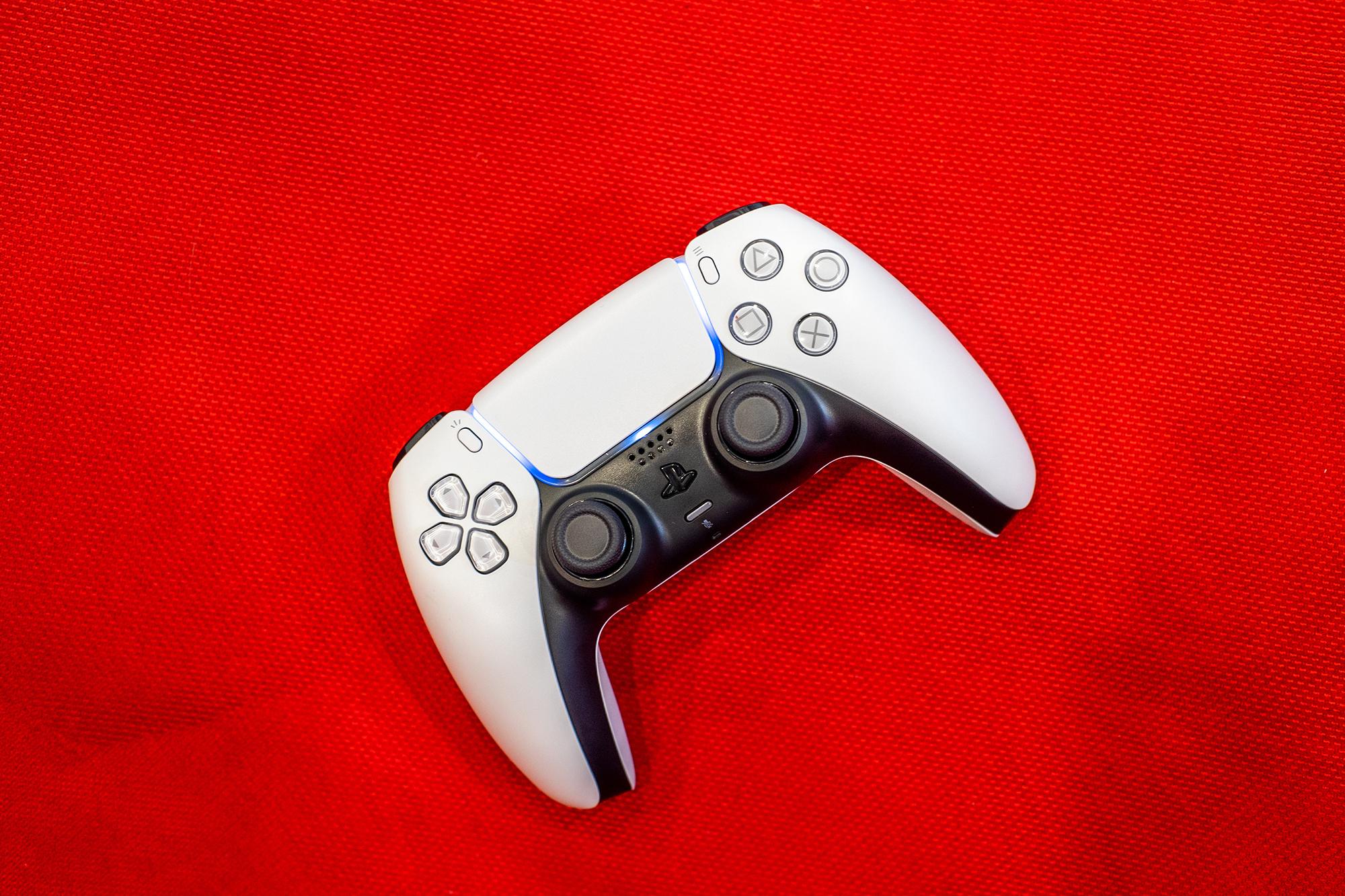
Press the PS button on your DualSense controller (it’s the one shaped like the PlayStation logo in the middle).
Open the Control Centre and go to Game Base.
Select the Discord tab. You’ll see your servers, voice channels and even group DMs.
Pick the channel you want and hit Join.
That’s it! You should now be in.
Method 2: Transfer from mobile or PC
Join a voice channel on Discord (mobile or desktop).
Tap Join on PlayStation or Transfer to Console.
Select your PS5 from the list.
The call will now move over to your console.
What features are available on PS5 Discord?
Right, you’re in a Discord voice chat on your PS5. What can you actually do in there?
Voice chat controls – Mute/unmute using your controller’s button or the on-screen options.
Audio balance – Adjust game and chat volume in the PS5 sound settings. It’s key when you’re trying to hear orders over gunfire and explosions.
Device flexibility – Use the built-in DualSense mic, a wired headset or a wireless headset to natter away on – whatever you prefer.
Cross-platform chats – Chat with your mates playing on PC, mobile, Xbox or other consoles. Now that crossplay is a huge part of multiplayer gaming, it’s a game-changer!
Quick switching – Jump between Discord voice chat and PS5 party chat to catch up with the fam and then your clan.
There are a few limitations that you’ll want to be aware of though…
There’s no text chat or server browsing.
You won’t be able to screen share or stream from your PS5.
You can’t record Discord calls on PS5.

Troubleshooting Discord on PS5
Issues getting in the way of the action? We’ve rounded up a few of the most common fixes:
Update everything – Check that your PS5 system software and the Discord app are up to date. The latest versions can help to iron out any bugs or glitches.
Re-link accounts – If voice chat won’t connect, unlink and re-link your PSN and Discord accounts.
Check your privacy settings – Set your PSN status visibility to ‘Anyone’ so Discord can properly display your activity.
Fix audio problems – Head to Settings > Sound and select the right output device. It’s no good if you’ve got the chat coming out of your TV instead of your headset. And if the rest of the squad can’t hear you, adjust your mic levels and check the mic isn’t muted.
Network issues – Restart your router or switch to a wired connection for better stability. Hey, that first one might be the oldest IT trick in the book, but it works for a reason.
Can you use Discord without a phone or PC?
Yes. Thanks to the recent updates, you can join Discord voice channels directly from your PS5 without needing another device. Just link your accounts once and then use the Game Base > Discord menu to hop into calls.
It’s worth saying that for the first setup, you’ll still need a phone or PC to scan the QR code or enter the activation code. After that, you’re good to go.

Need more advice?
So, that’s how to use Discord on PS5. And we’ve got plenty of other PlayStation tips and tricks for you to get stuck into as well. If you’re not sure which of Sony’s consoles to go for, find the answer in our piece, PS5 Slim vs. PS5: what’s the difference?
After a new telly to go with your PlayStation? Make sure you get the right one, and check out the best TVs for PS5 and PS5 Pro in 2025.