

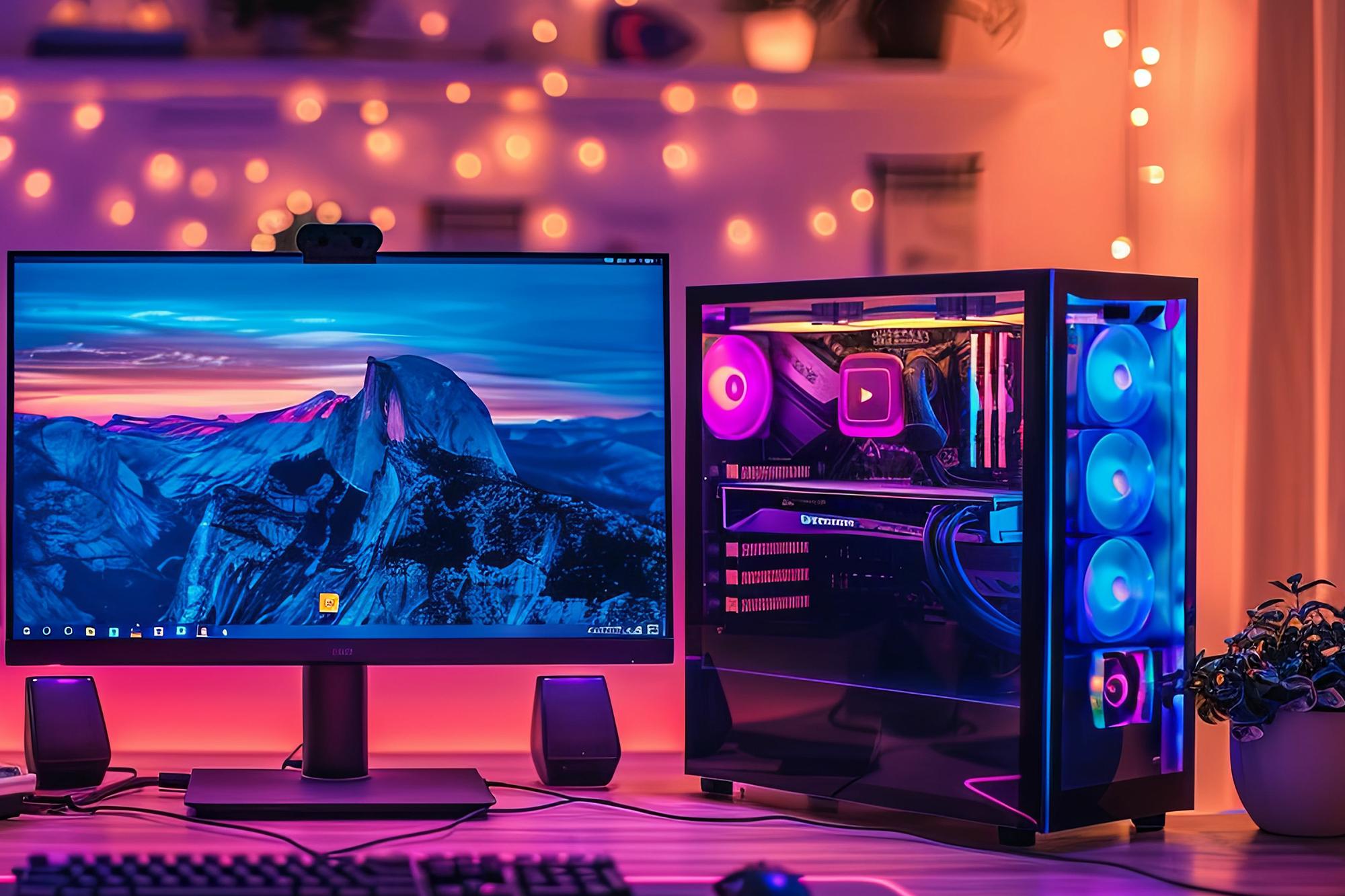
The UK’s pretty darn hot at the moment. And while that’s a nice change from the usual dreary weather, it’s got its downsides. Especially when it comes to tech. If you’re not careful, heatwaves can really do a number on your gaming PC. And it’ll start to feel the heat just as much as you do.
Overheating can lead to all sorts of problems. Performance issues. Complete system crashes. Long-term hardware damage. They’ll bring your gaming sesh to a grinding halt. Luckily though, there’s a few simple steps you can take to keep your rig running smoothly – even during the hottest days of the year…
Monitor your system temperature
Before you start making any changes, you need to know what you’re dealing with. This is where monitoring your system temperature comes in. Free software like HWMonitor or Core Temp are really good at keeping an eye on how hot your CPU and GPU are getting. With real-time data, you’ll see exactly how your PC is performing during the warm weather. And then you’ll know whether you actually need to do anything about it.
Ideally, your CPU should stay well below 80°C during gameplay. While your GPU will hopefully hover around 85°C and under. If either is consistently hitting or exceeding these temperatures, it’s time to act. Don’t wait for your rig to crash either – be proactive and sort the issue early doors. Otherwise, you might be in for an expensive bill.

Improve your PC’s airflow
Good airflow is key to keeping your PC cool. Here’s a few tips to make your airflow as breezy as possible…
Clean your PC – Dust is the number one enemy of good airflow. Use compressed air (not a vacuum cleaner!) to blow out any dust that’s built up on your fans, heatsinks and other components. Remember, a clean PC is a cool PC.
Optimise your fan placement – Your fans should be set up to create a ‘positive pressure environment’. For the non-PC heads among you, this means having more air coming into the case than going out, which helps to stop dust from working its way in. To do that, make sure you have more intake fans than exhaust fans. This’ll push lots of cool air into the case and expel any hot air a lot more effectively.
Use high-quality fans – Buy decent, high-CFM (cubic feet per minute) fans. They move more air around than normal ones and should stop your components from overheating.
Cable management – It’s a simple one. But poor cable management can completely obstruct airflow. Your cables should be neatly organised and tied down to the case. That way, air can flow freely around the inside of your PC.
Intake fans vs exhaust fans
Intake fans sit at the front of your case and draw cool air in. Exhaust fans are at the back or top of the case and push hot air out. You need both for proper cooling.

Consider liquid cooling
Liquid cooling is probably the best way to keep your PC on the chill side. It’s generally more efficient at dispersing heat than air cooling is, and does a great job in hot rooms. But why’s that? Air cooling uses regular fans and heat sinks to dissipate heat. Whereas liquid cooling uses a special coolant to transfer heat away from your components as soon as it’s generated. Basically, it doesn’t even have a chance to build up.
You’ve got a couple of main types of liquid cooling to pick from too…
All-in-one (AIO) coolers – These are pre-built liquid cooling systems that are easy to install and maintain. They come in various sizes to fit different CPU and GPU setups and are filled with coolant from the off. Meaning you won’t risk spilling it all over your desk!
Custom loops – If this isn’t your first build, a custom liquid cooling loop will give you even better cooling performance. It’ll need more maintenance and smarts to keep it running though. So, make sure you’re up to the challenge before you drop the cash.

Upgrade your thermal paste
Thermal paste is the material that helps to transfer heat from your CPU or GPU to the cooler. Over time though, thermal paste can degrade – making the cooling way less efficient. And if that happens, your system will start to overheat, and your PC’s performance will take a big dip.
So, to stop that, you’ll need to reapply a fresh coating of thermal paste every so often…
Choose the right thermal paste – Don’t skimp out here. Look for high-quality paste from trustworthy brands like Arctic, Noctua or Thermal Grizzly. They’re worth the extra cash.
Apply it properly – Follow the manufacturer's instructions for applying the thermal paste. Too much or too little can really affect performance. A thin, even layer usually works best.
Don’t forget to do it – It’s a good idea to replace your paste every 3 to 5 years. Or sooner, especially if you notice that your rig is running hotter than usual.
Thermal paste 101
Need some step-by-step help? Have a read of our handy guide – how to apply thermal paste to a CPU.

Optimise your gaming room
If your gaming den is stuffy and humid, your PC’s temperature is going to spike. And your controller, mouse and keyboard are going to get pretty clammy too. Here’s how to beat the heat…
Improve ventilation – Crack a window open or use a fan (or fans) to increase the air circulation in your room. It’ll really help to bring down the temperature. If you’ve got the extra space, an air conditioner is a great shout too.
Avoid direct sunlight – Keep your PC away from direct sunlight. Those warm rays will make it a lot harder for it to stay cool. So, if you can, pop it under your desk in a nice shady spot.
Stay away from walls – If your computer is shoved up against the wall, move it away from it. Walls can block airflow and ramp up the PC’s internal temperature.
Install some blackout blinds/curtains – Gamers sat in the dark is a bit of a cliché. But here, it makes complete sense. Blackout curtains or blinds will reduce the amount of heat coming into your room through the windows and stop it from getting too hot.

Underclock or undervolt
Ok, this one’s slightly techier. If your PC is still running hot, you can always try underclocking or undervolting your components. Both of these will lower the heat being pumped out and reduce the amount of power that’s being used…
Underclocking – Lowering the clock speed of your CPU or GPU will reduce the level of heat they generate. But this will also impact your performance – so, it’s more of a last resort sort of thing.
Undervolting – Reducing the voltage that’s supplied to your components can also lower the amount of heat they create. Compared to underclocking, it shouldn’t hit your performance too much. If you need a hand on how to actually do it, check out tools like Intel’s Extreme Tuning Utility (XTU), MSI Afterburner or AMD’s Ryzen Master.
And if you’re worried about whether they’re safe to do or not, don’t be. Gamers have been doing both for years now without any issues.
Play at lower settings temporarily
We know it’s fun to play the latest games with all the graphical bells and whistles switched on. But those shiny visuals need lots more processing power and put a big strain on your system. And more strain equals more heat. So, here’s how to reduce the load on your GPU and CPU…
Lower resolution – Playing at a lower resolution – e.g. at 1080p instead of 4K - is going to stop your GPU from working overtime. The game is going to look a bit worse, but hey, it’s worth the trade-off.
Reduce graphics settings – Drop any intensive settings like anti-aliasing, shadows and texture quality right down to their lowest levels. Or, if there’s the option, turn them off entirely.
Frame rate cap – Setting a frame rate cap should mean your GPU won’t have to perform too hard. And it won’t be firing out excessive amounts of heat either.

Think about a laptop cooling pad
Prefer to play on a gaming laptop? A laptop cooling pad is an absolute lifesaver during a heatwave. These handy little gadgets have built-in fans that draw the heat away from your laptop and keep its components at a stable temperature. And that improves performance and can even extend the lifespan of your hardware. Nice.
Just make sure it’s placed on a flat, stable surface – soft surfaces like your bed or the sofa can block the fans and stop them from working properly.
What to look for in a good cooling pad:
Multiple fans – The more fans you’ve got, the cooler your laptop will be.
Adjustable fan speeds – Speed up or slow down the fans to control the noise level. After all, you need to hear what’s happening in-game.
Ergonomic design – If you can, try before you buy. You want it to stay comfy during those long gaming sessions.
Any other suggestions?
If you don’t have a cooling pad, a raised laptop stand will work too. That extra clearance lets air flow underneath your laptop and stops heat from building up.
FAQs
What temperature is too hot for a gaming PC?
This completely depends on the component. For your CPU, it’s going to really struggle at anything above 85°C. While graphics cards will tend to chug at 90°C and upwards. The harder your components work, the hotter they’ll get – but as long as you’ve got enough fans and/or liquid cooling, they shouldn’t ever get this hot.
How can I tell if my GPU is overheating?
Here’s a few telltale signs that your GPU is starting to lag behind…
Performance drops – Noticeable lag or frame rate drops usually mean something is wrong.
Noisy fans – PC sounding like it’s about to take off? That’ll be the fans working overtime and running at full speed.
System crashes/freezes – Frequent crashes, freezes or restarts are a right pain. And are generally caused by parts overheating.
If you want to get an exact temperature reading, check out tools like MSI Afterburner. You’ll be able to keep an eye on things and jump in if the heat levels suddenly spike.

Are cooling pads worth it for gaming laptops?
Laptops can get really hot - especially if you’re sat with one on your lap for hours. With a cooling pad though, it shouldn’t feel like it’s getting hotter than the surface of the sun. So, you can settle in for a multiplayer marathon without worrying that it’s about to melt.
How do I improve airflow in my PC case?
There are a few fairly straightforward things you can do…
Fan placement/types – Mix it up and use a balance of intake and exhaust fans. The higher their CFM ratings, the better the air movement will be.
Dust filters – These do exactly what they say on the tin. Use a few to stop dust from getting everywhere.
Cable management – Keep cables tidy and make sure they’re not blocking air from moving through your case.
Case design – Pick a PC case with good airflow. That way, all your components won’t get too hot.
Clean, clean, clean – Regularly clean out any dust and debris. It gets a bit mucky, but if you don’t want your components to fail, you’ll need to do it.

Is liquid cooling better in summer?
It can be more effective in hot rooms and during periods of warm weather. Why? Well, it transfers heat away from your components. Plus, it’s built to handle much higher heat loads and keeps your components a lot cooler than standard air cooling does.
Need more advice?
If you’re building a gaming PC from scratch, our article covers all the big dos and don’ts. Beefing up your current rig? Then our tips for upgrading your gaming PC in 2025 are a must-read.